Connect LINE Official Account
Ready to let your AI Agent handle customer chats on LINE?
Open LINE Official Account Manager at https://manager.line.biz/ and log in, then follow the steps below to connect your account to DealDroid.
Quick summary — 4 main steps:
- Enable Messaging API & set up a Provider in LINE
- Create a LINE Channel in DealDroid and paste Channel ID / Secret
- Configure Webhook in LINE and Issue a Channel Access Token
- Disable auto-responses, test from multiple devices, and verify Chat in DealDroid
Don’t worry — we’ll walk you through each step in detail. 🚀
Why connect LINE?
Section titled “Why connect LINE?”- 💬 Respond 24/7 — Your AI Agent replies to customers even when your team is offline
- ⚡ Don’t miss sales opportunities — Fast replies increase engagement and conversion chances
- 🎯 Automate answers & selling — The AI can recommend products, answer FAQs, and guide users toward purchases
- 📊 Unified conversation management — See and manage LINE conversations alongside other channels in DealDroid
4 main steps to connect LINE OA
Section titled “4 main steps to connect LINE OA”- Step A — Enable Messaging API & create a Provider: Enable Messaging API in LINE OA and set up a Provider (open LINE Manager)
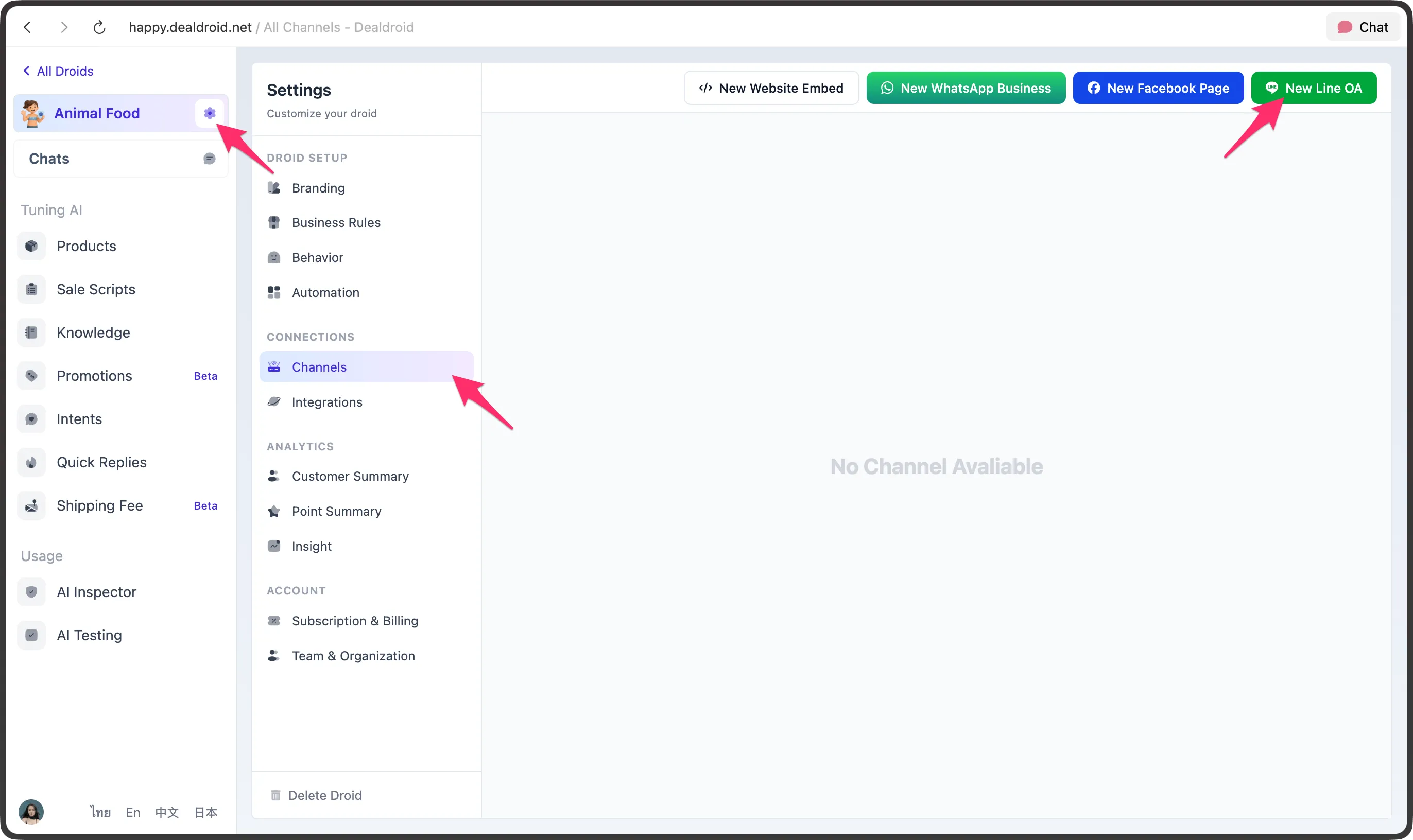
- Step B — Create the channel in DealDroid: Add
New Line OAin DealDroid and prepare to pasteChannel ID/Channel Secret - Step C — Configure Webhook & Issue Token: Paste
Webhook URLfrom DealDroid into LINE Messaging API, enable webhook, then issue a Channel Access Token and paste it into DealDroid - Step D — Test & disable auto-responses: Turn off LINE auto-response (Welcome messages), test from multiple numbers/devices, and verify replies in DealDroid Chat
Step A — Enable Messaging API & create Provider
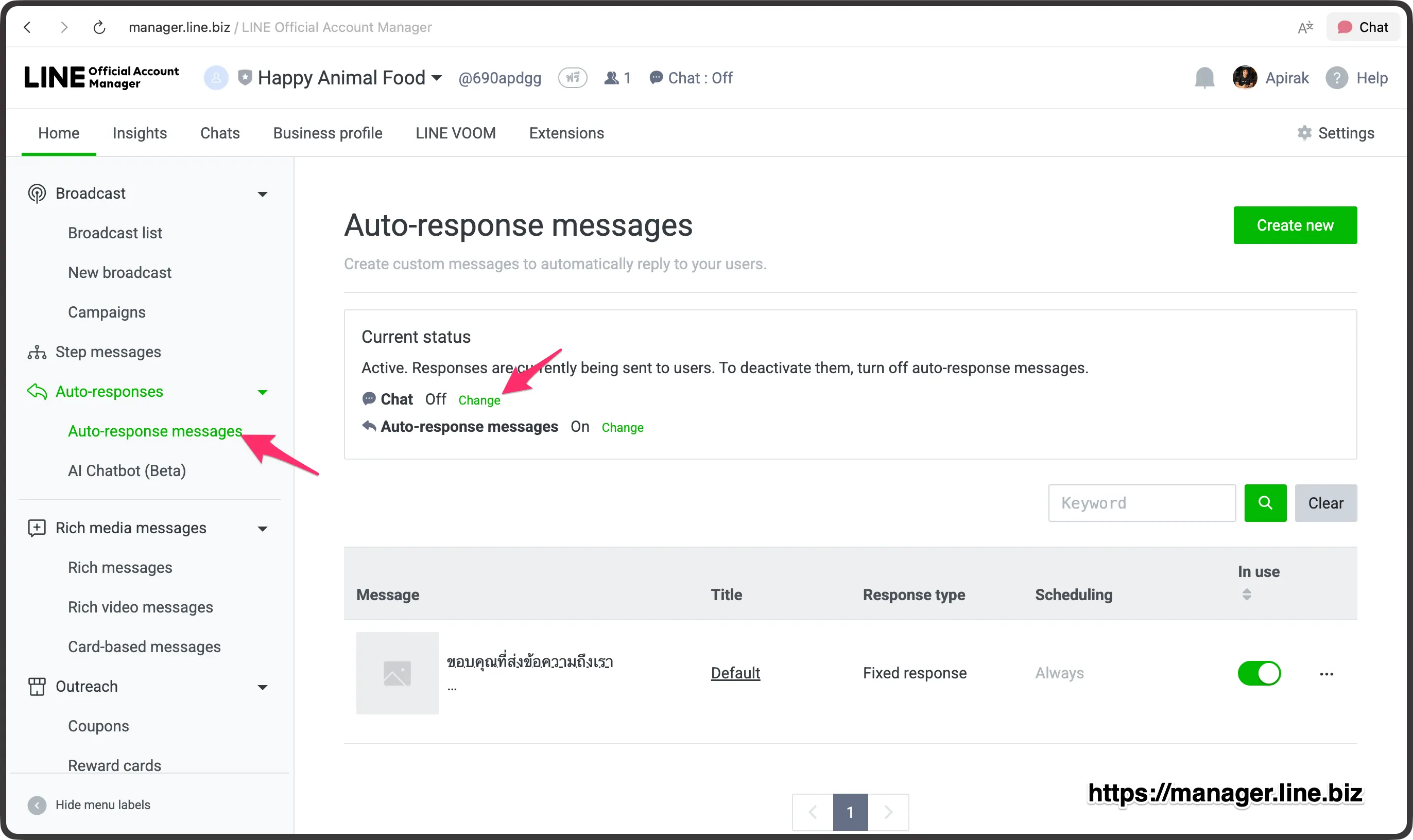
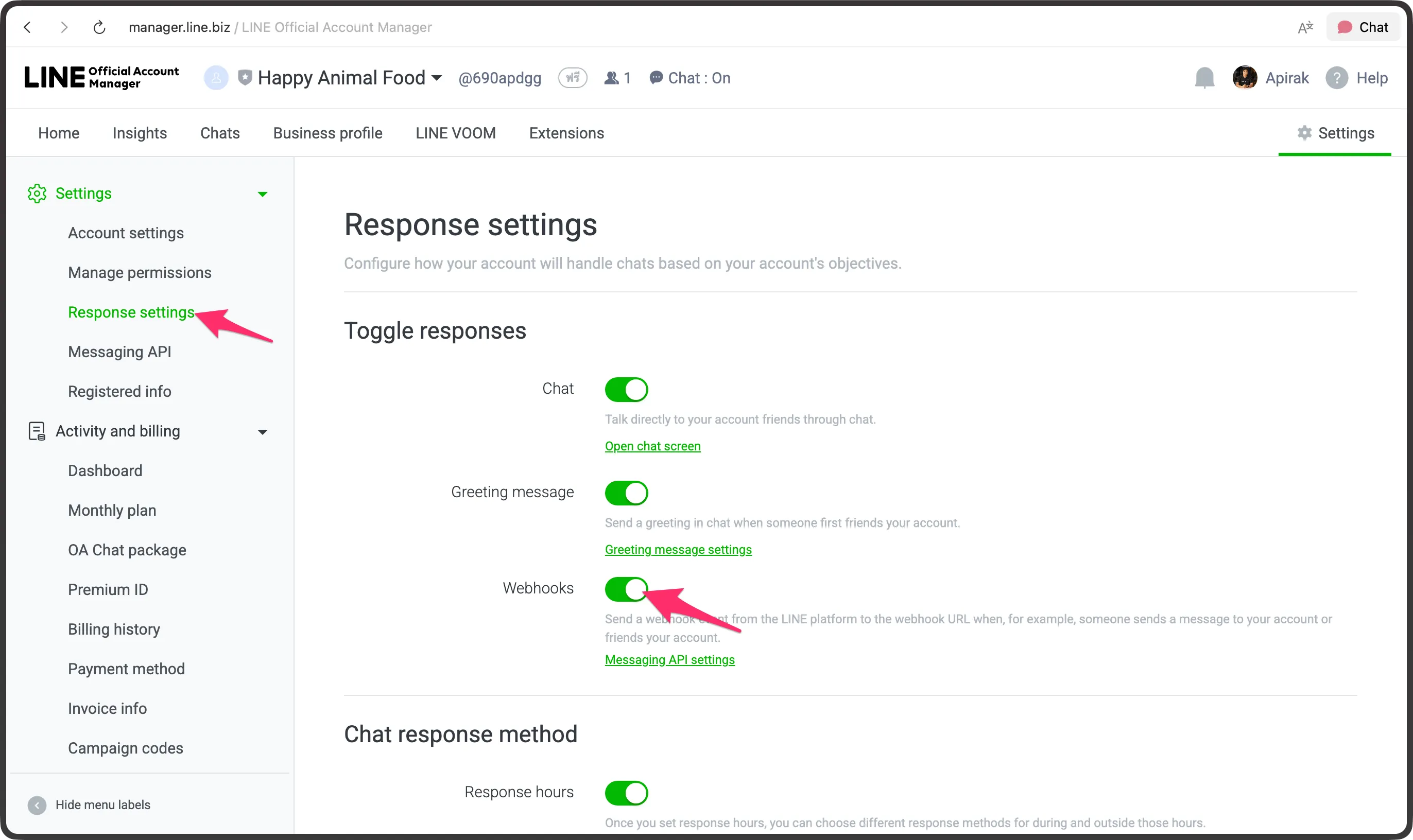
Section titled “Step A — Enable Messaging API & create Provider”- Open the Auto-response page in your LINE OA and go to
Response settings
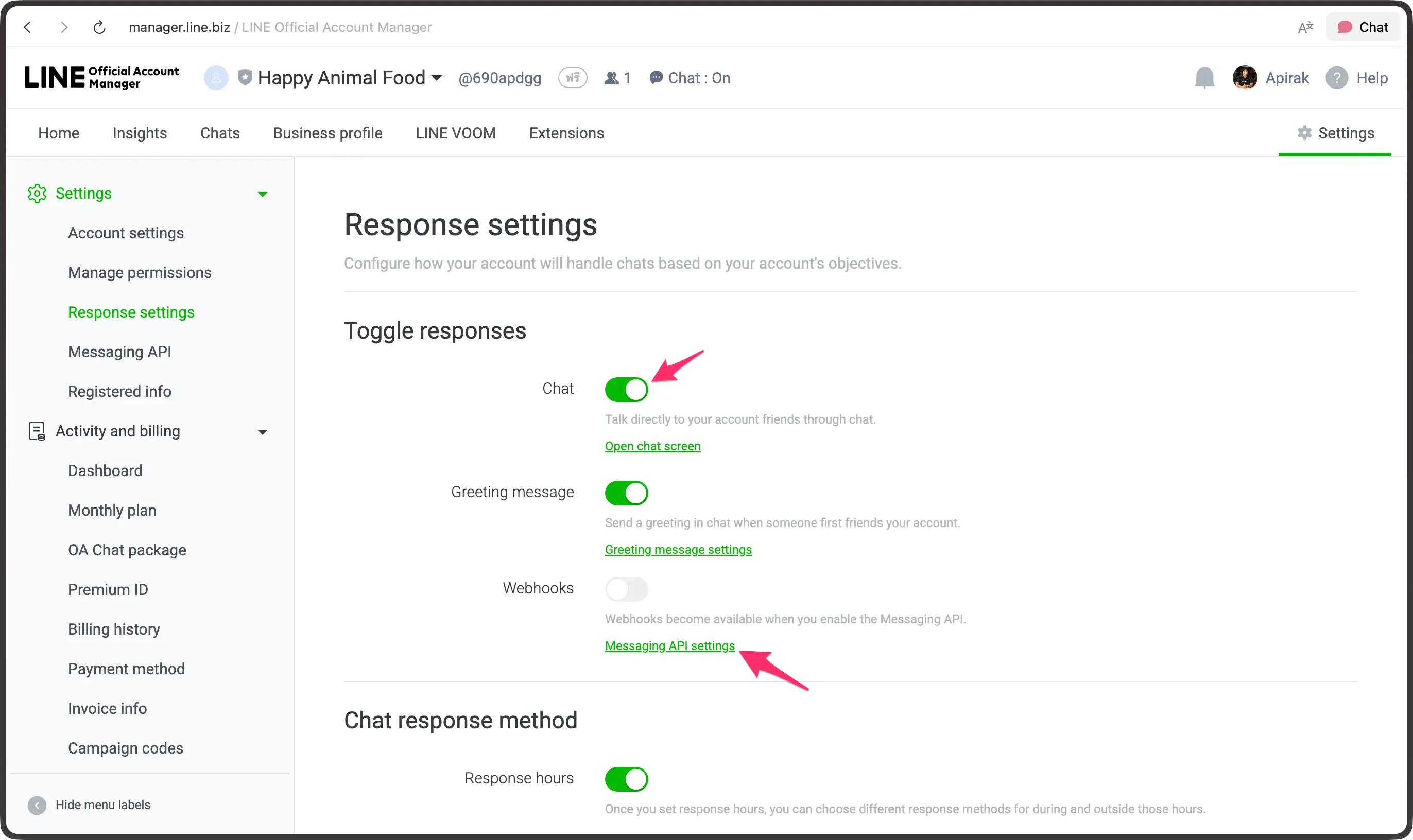
- Turn the
Chattoggle ON and click Messaging API settings
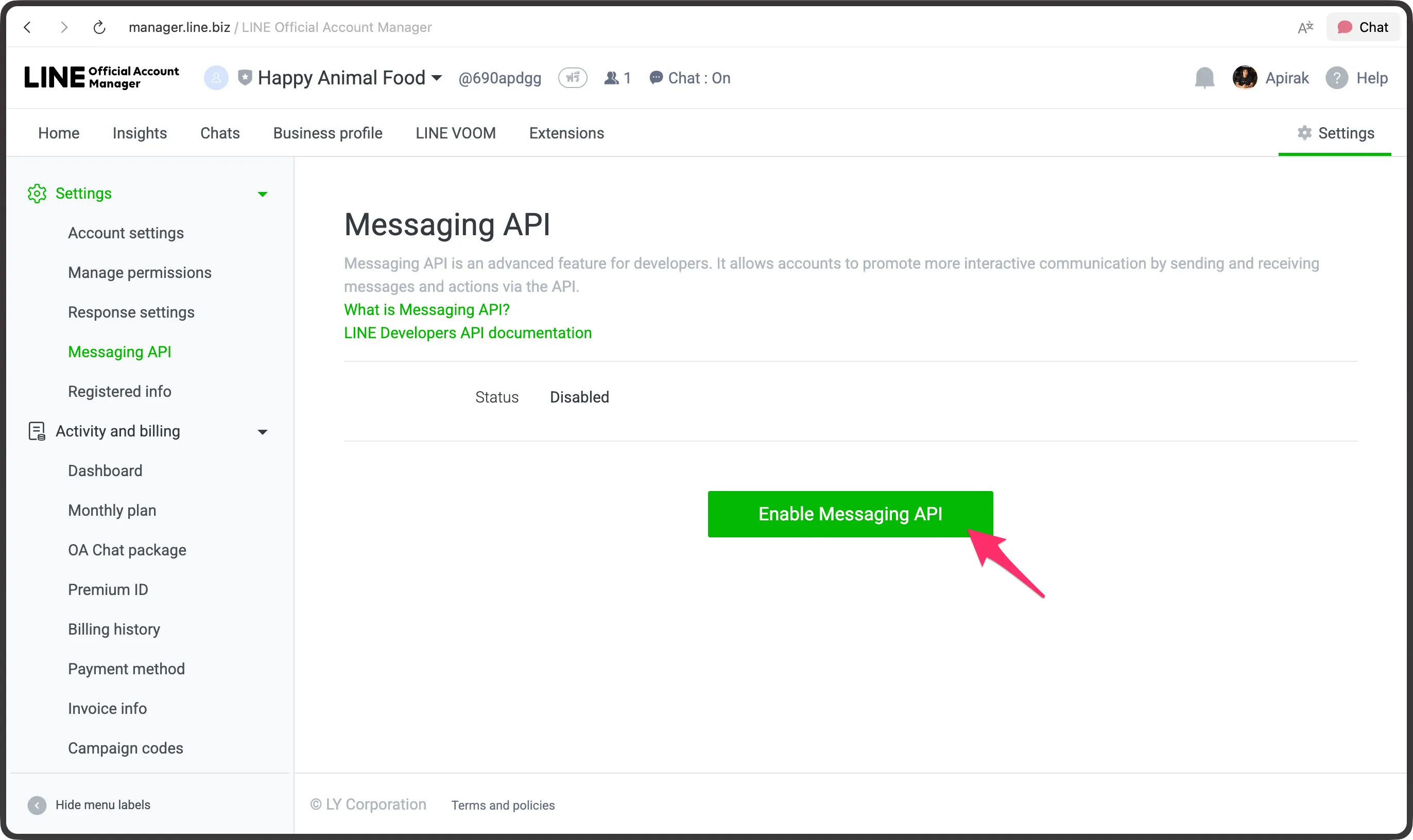
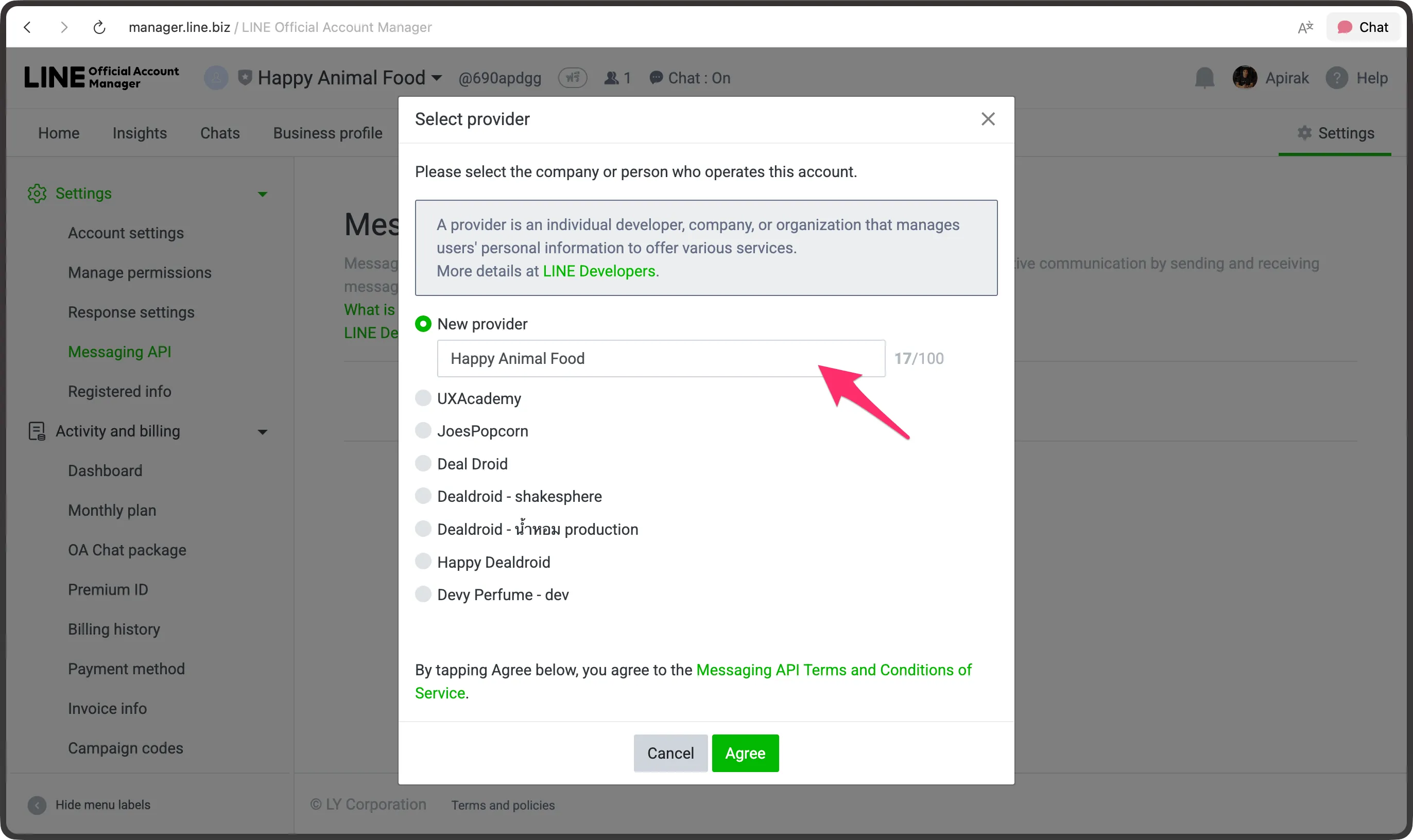
- If Messaging API is Disabled, click Enable Messaging API and follow prompts to set it up
- Choose or create a New provider, enter a provider name, add Privacy Policy / Terms URLs if requested, and confirm
Step B — Create the channel in DealDroid and add Channel ID / Secret
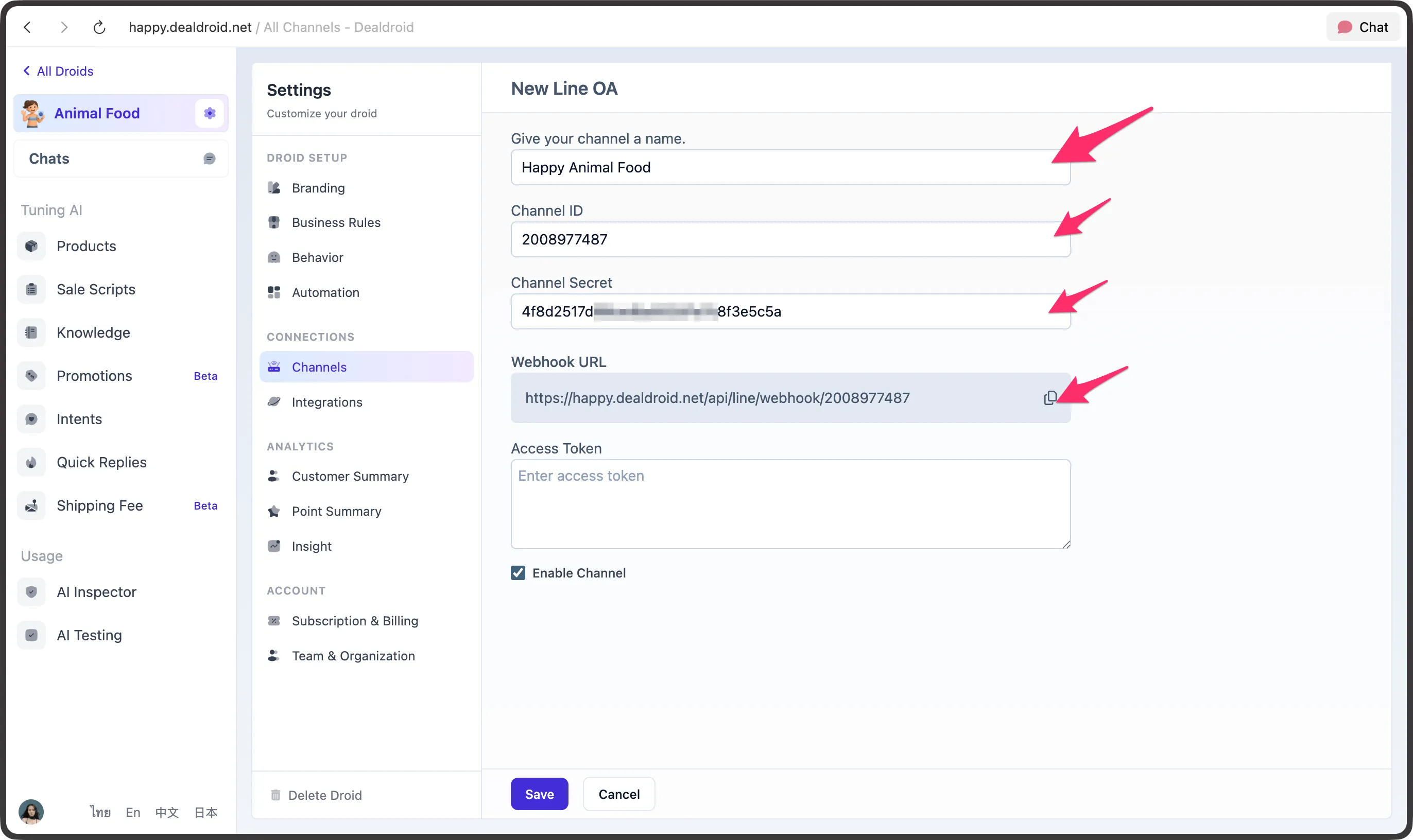
Section titled “Step B — Create the channel in DealDroid and add Channel ID / Secret”- In DealDroid go to
Settings→Channels→ clickNew Line OA
- Open the
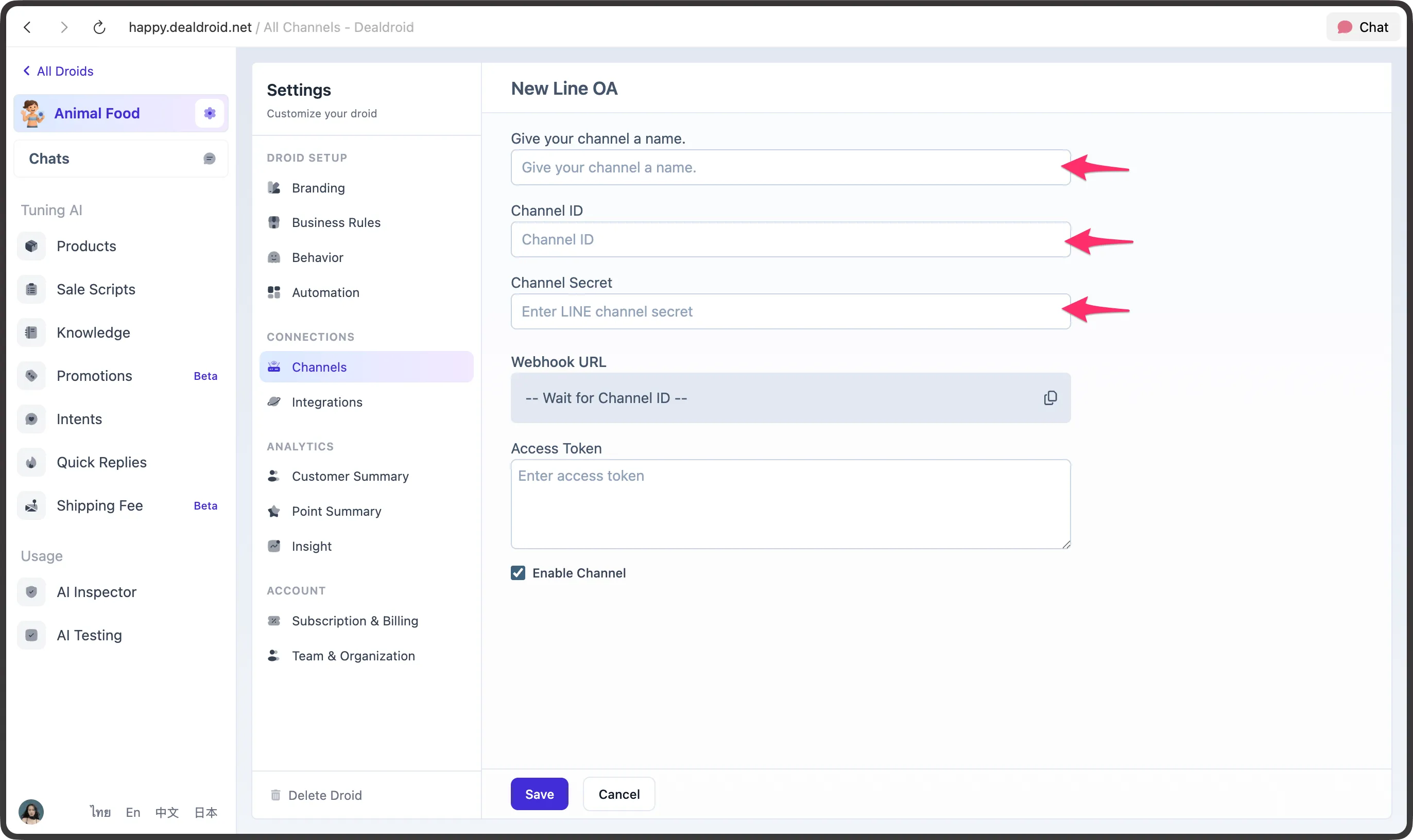
New Line OAform to prepareChannel ID,Channel Secret, andAccess Token
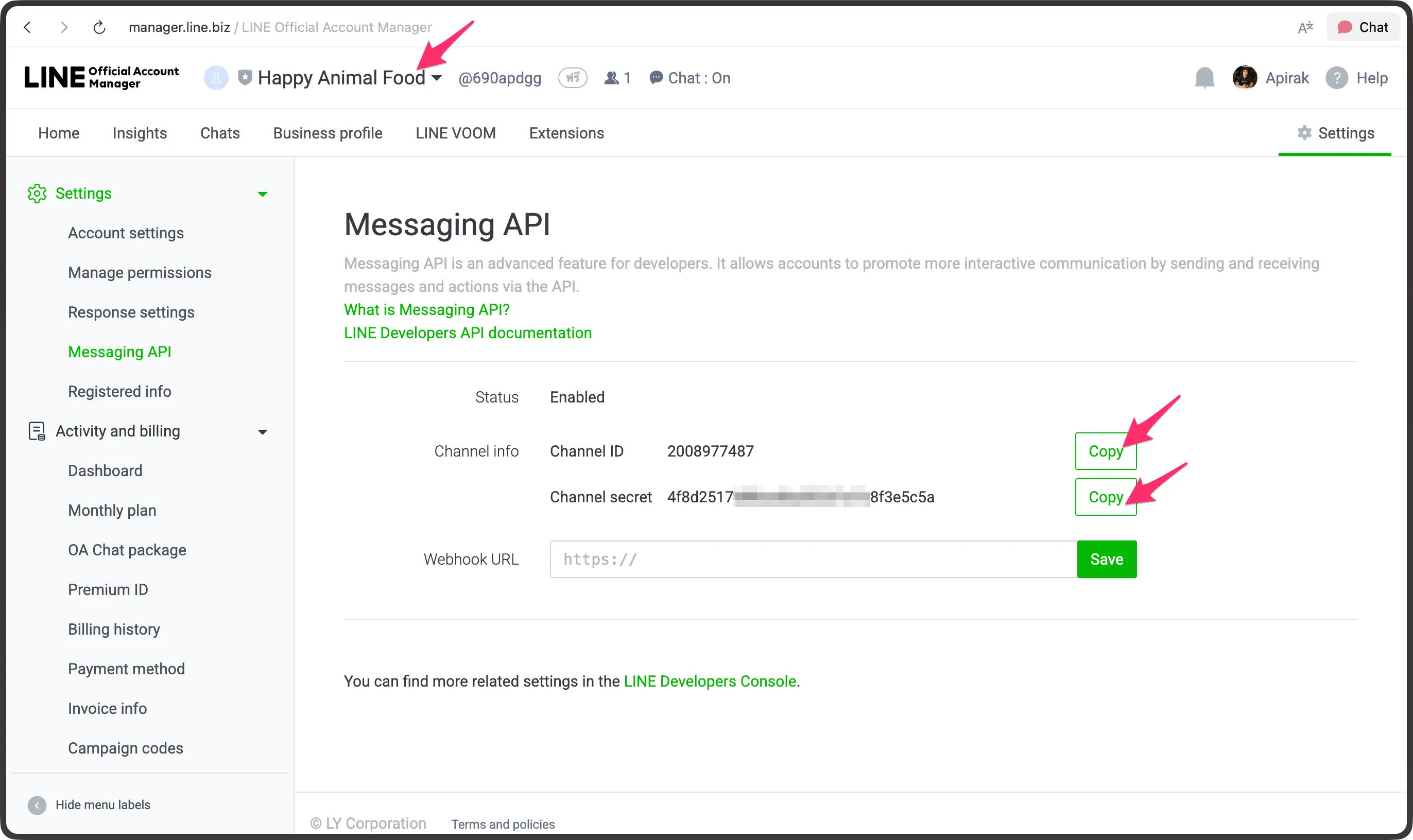
- Back in LINE Messaging API, copy Channel ID and Channel Secret, then paste them into DealDroid
Step C — Configure Webhook and create Channel Access Token
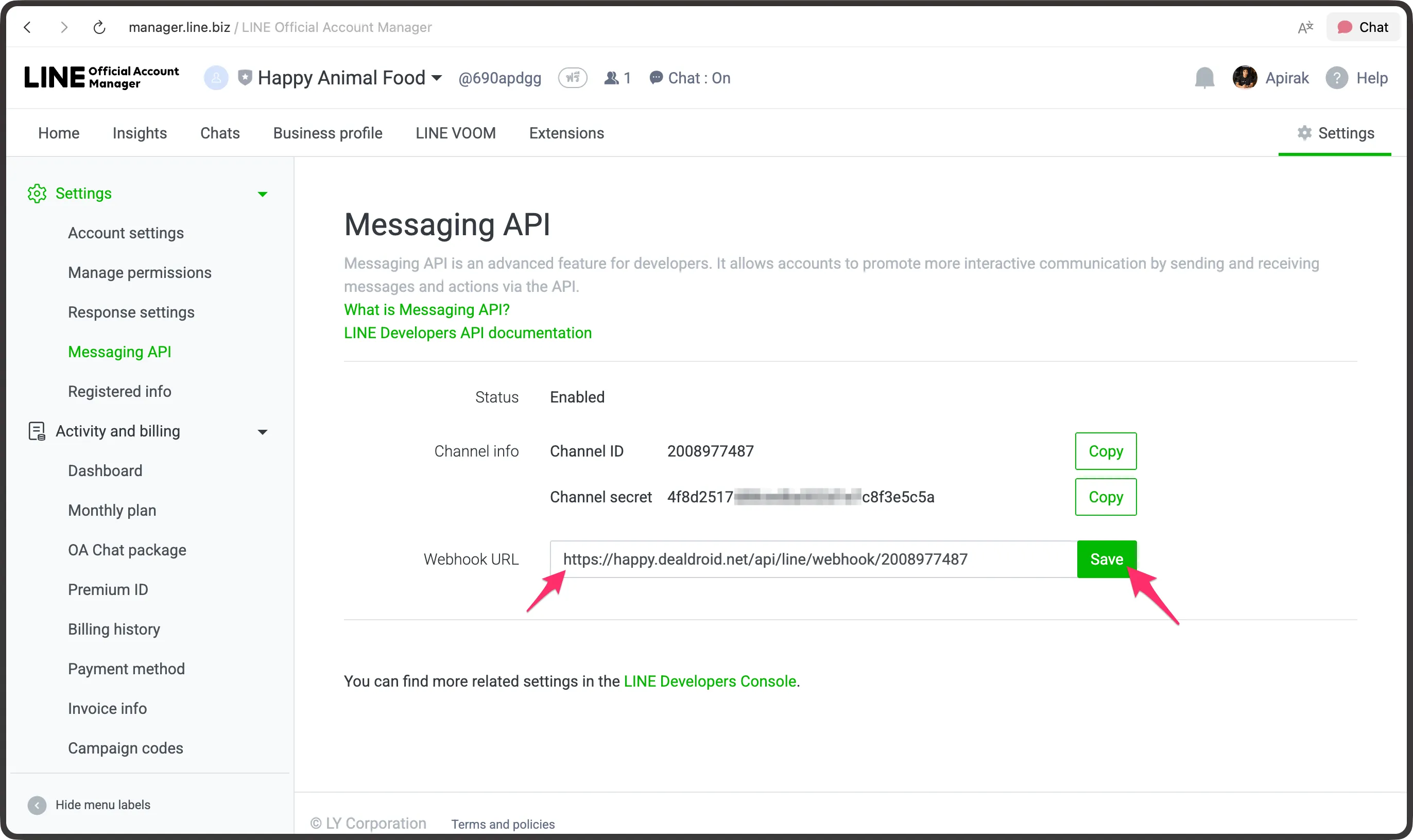
Section titled “Step C — Configure Webhook and create Channel Access Token”- In DealDroid copy the
Webhook URLfor the channel you created, then paste it into theWebhook URLfield in LINE Messaging API and Save
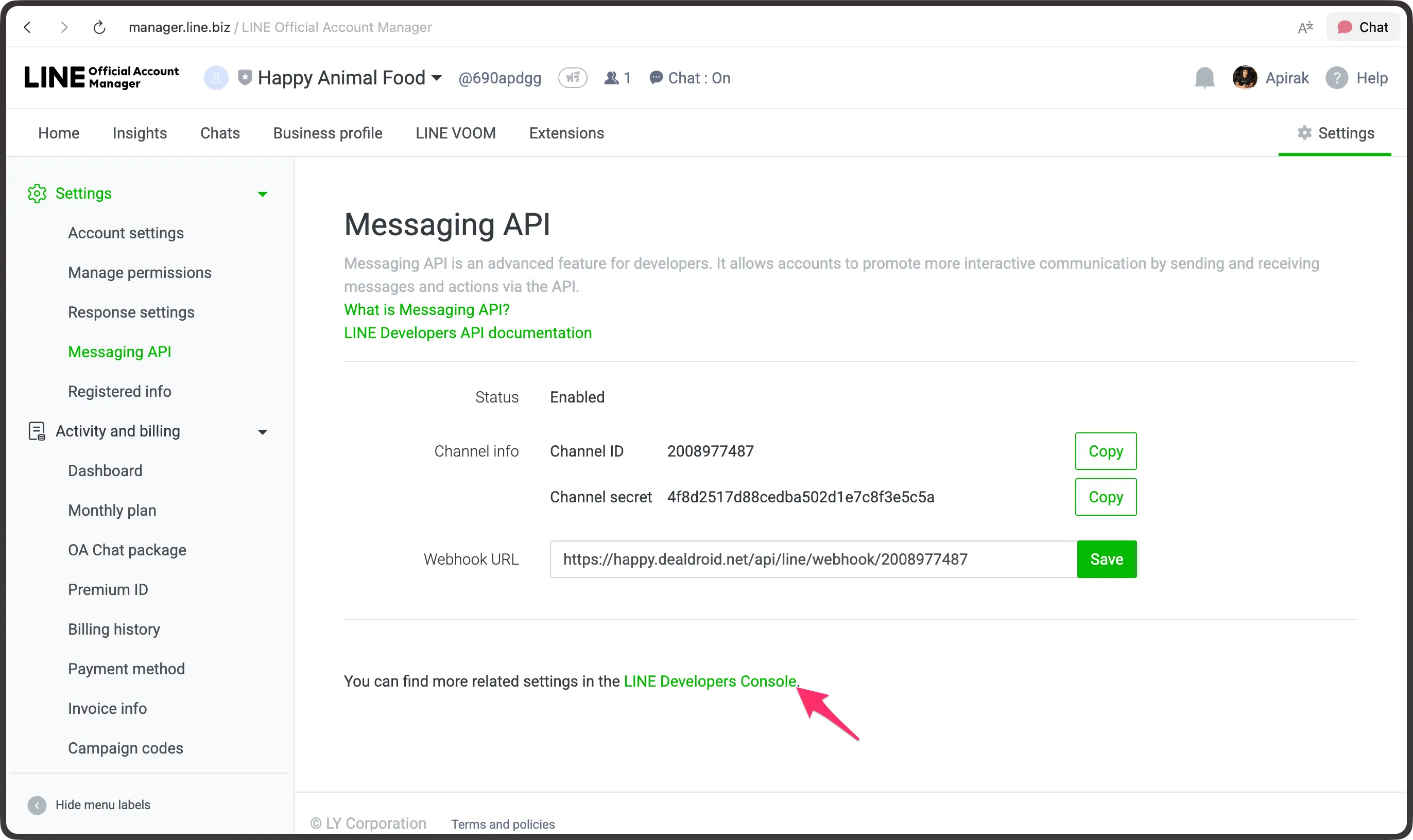
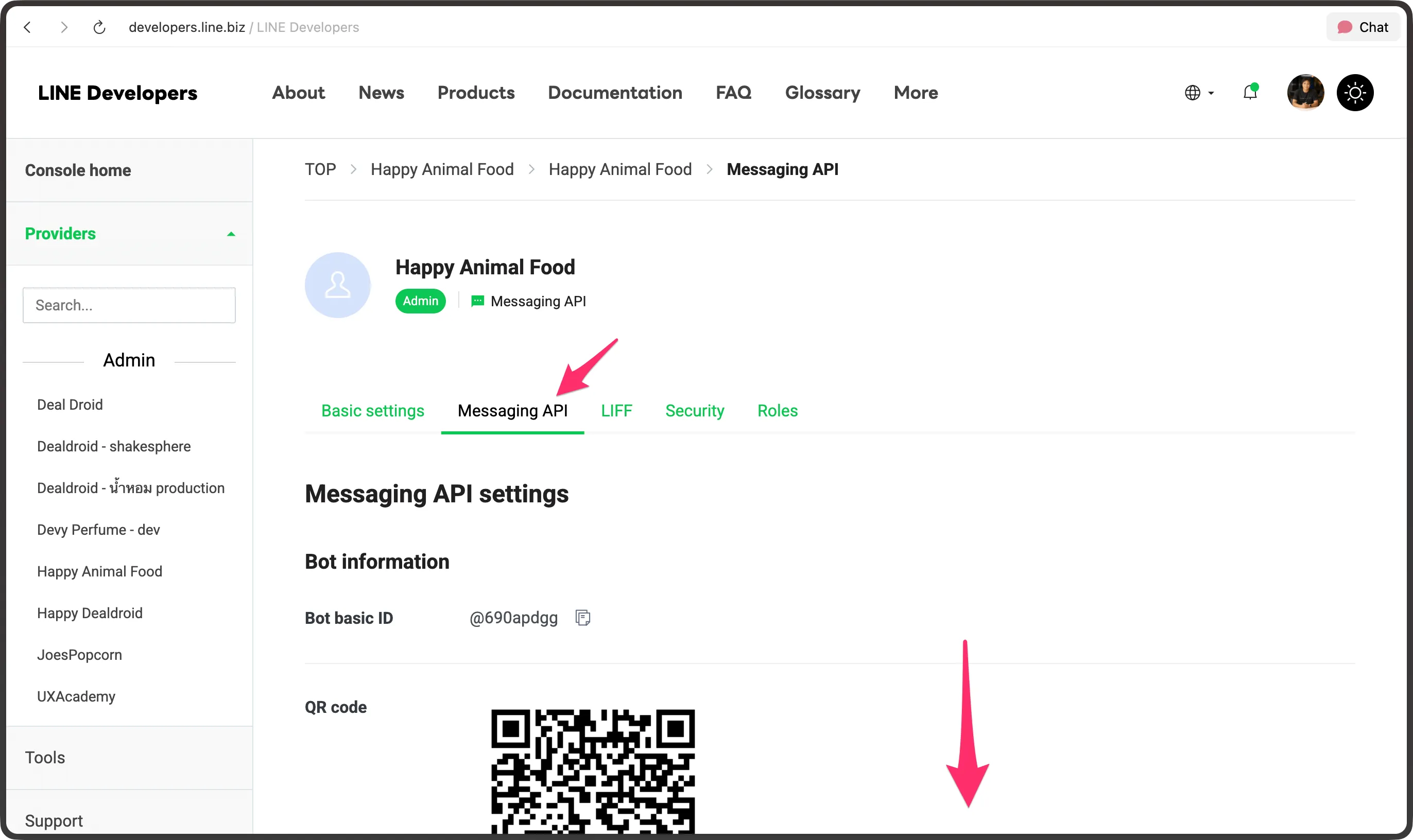
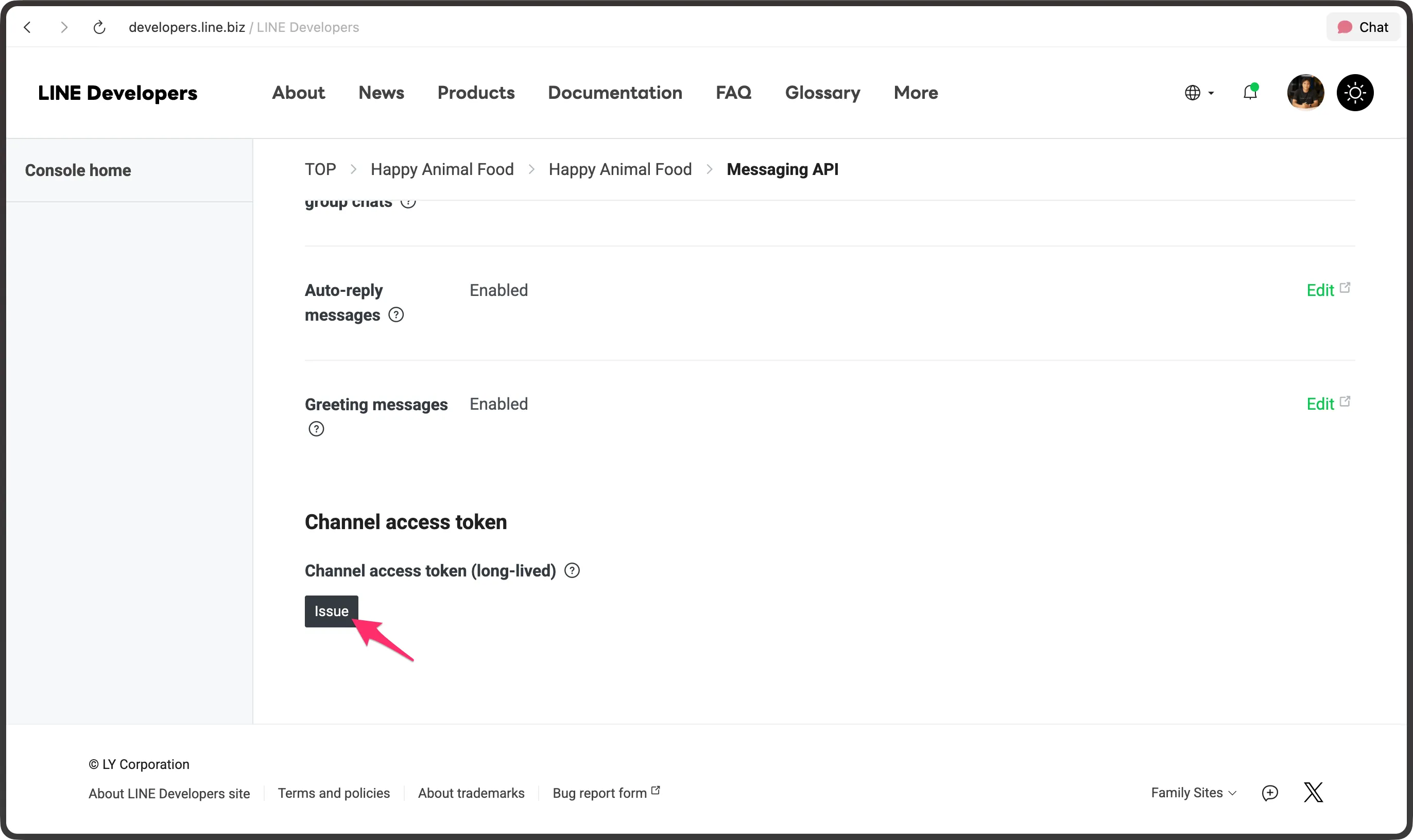
- In LINE Developers Console choose the Provider and Channel, open the
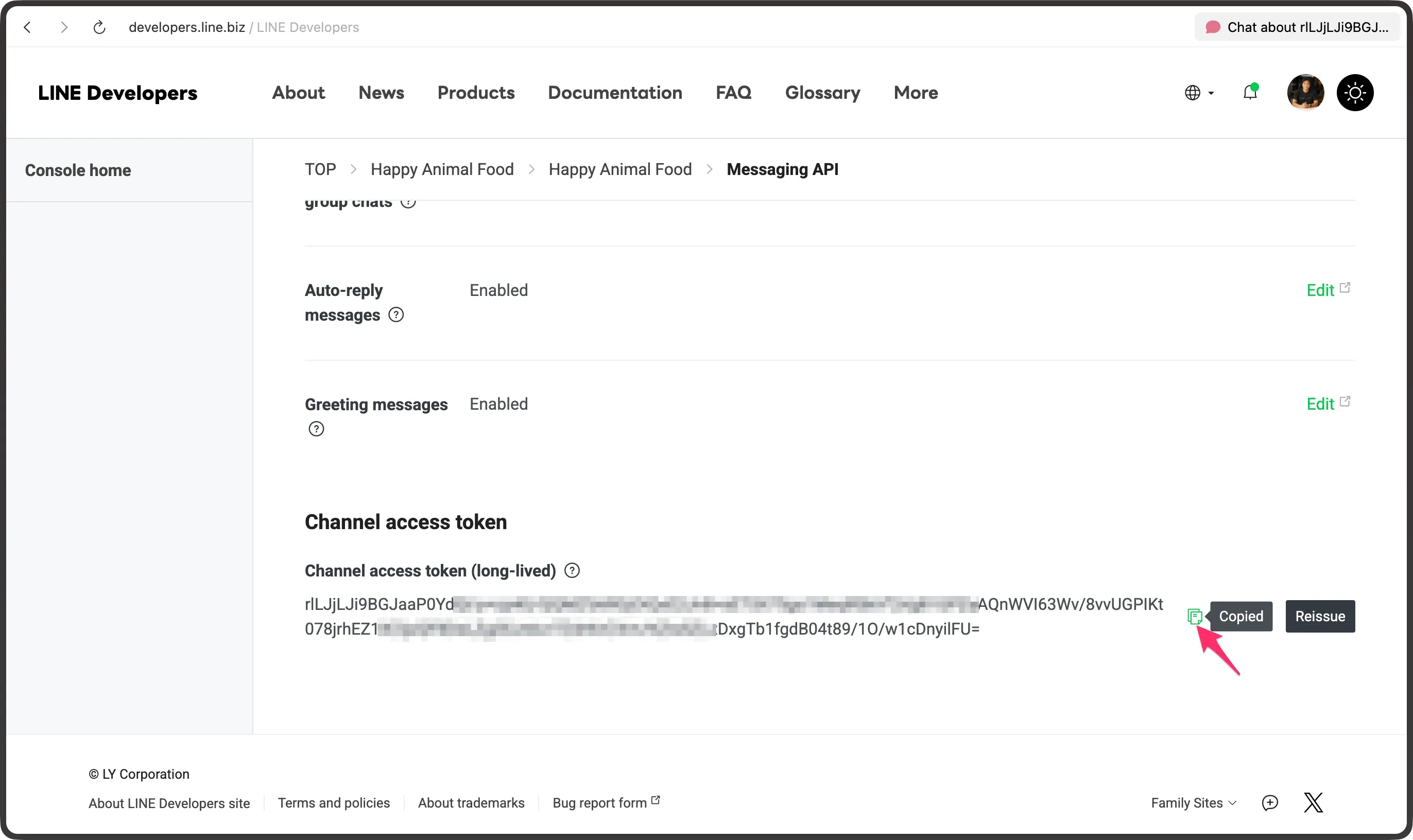
Messaging APItab, and clickIssueto create a Channel Access Token — then copy it
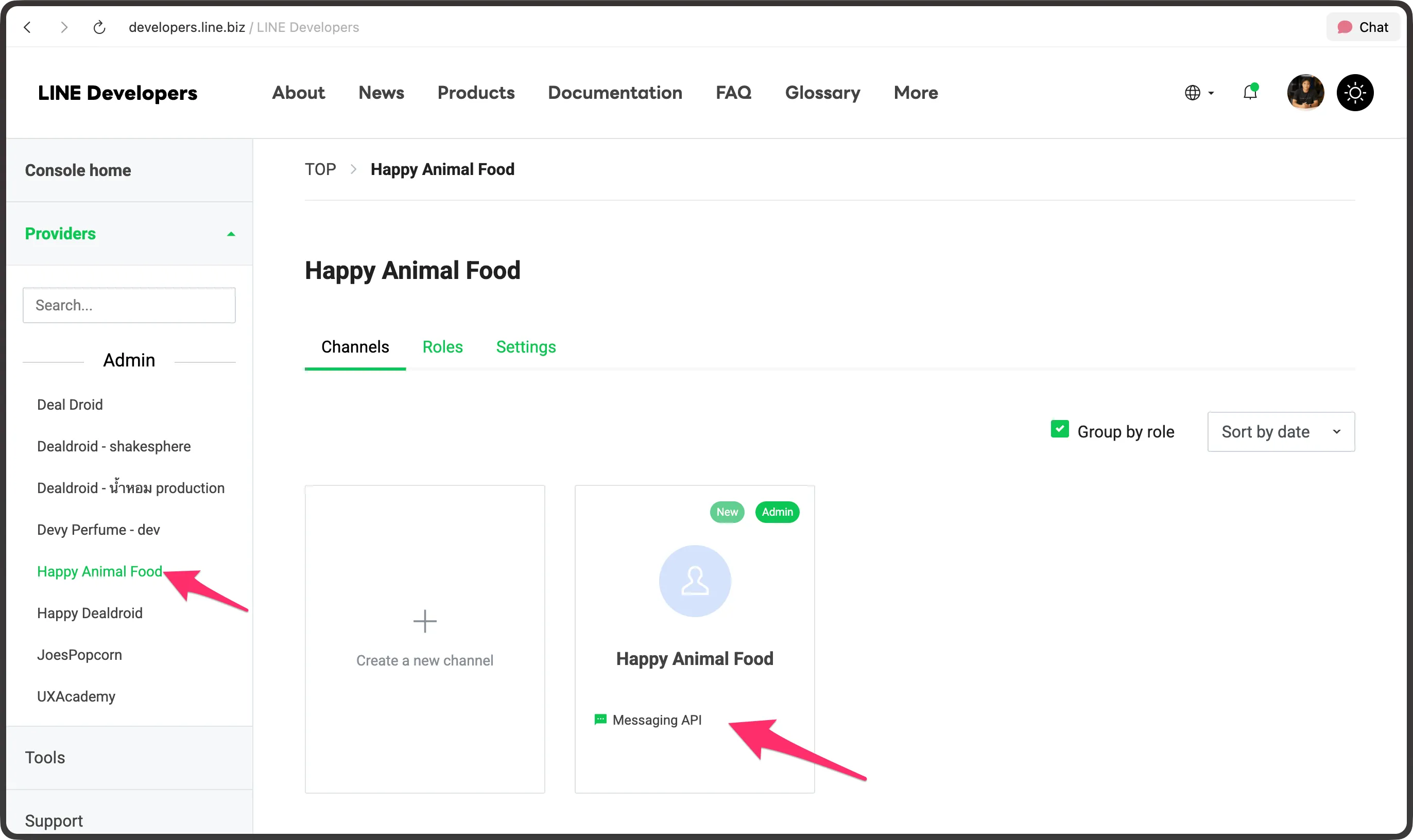
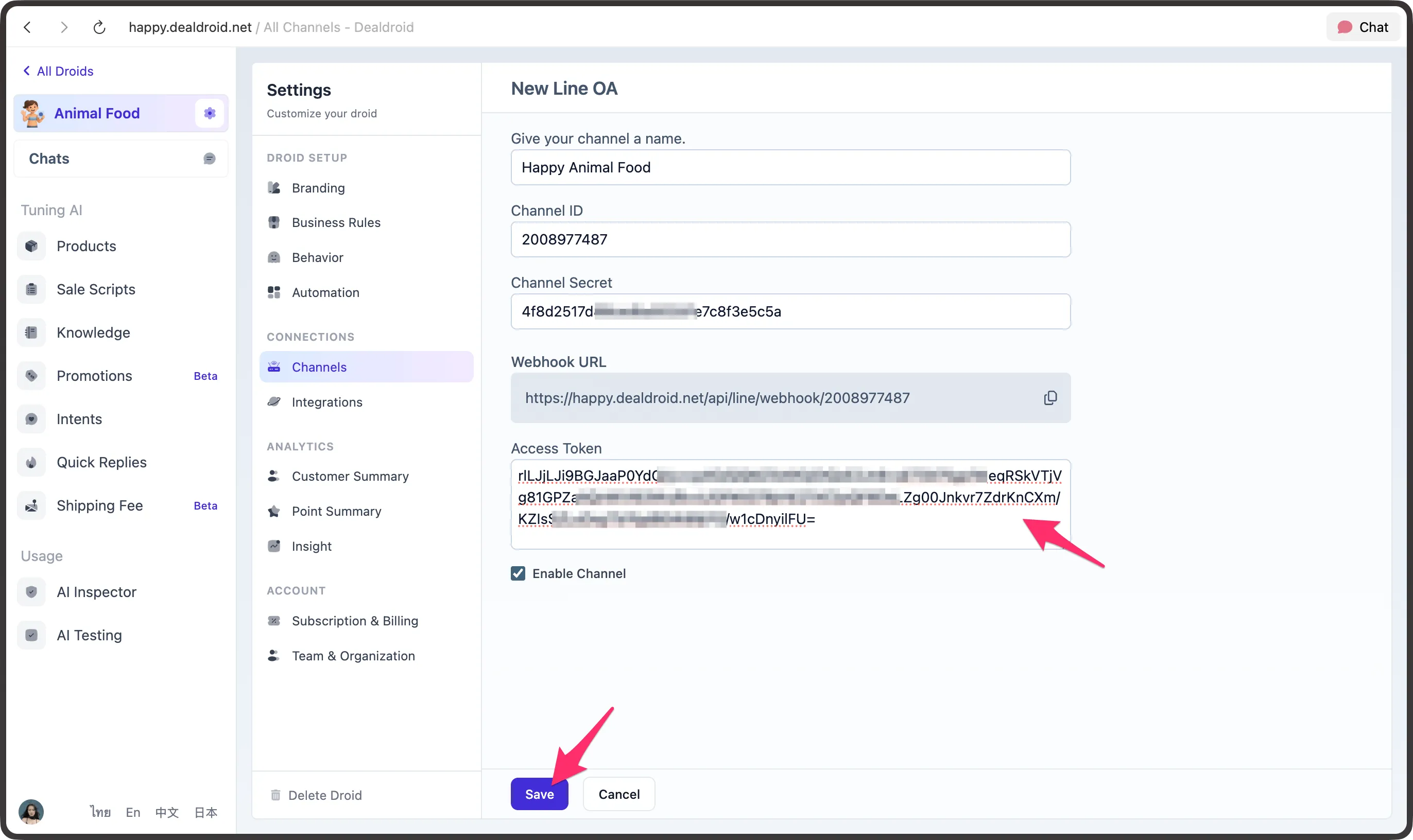
- Paste the
Access Tokeninto theAccess Tokenfield in DealDroid and Save
Step D — Enable webhook, disable auto-response, and test
Section titled “Step D — Enable webhook, disable auto-response, and test”- In LINE OA →
Response settings→ enableUse webhookand Save
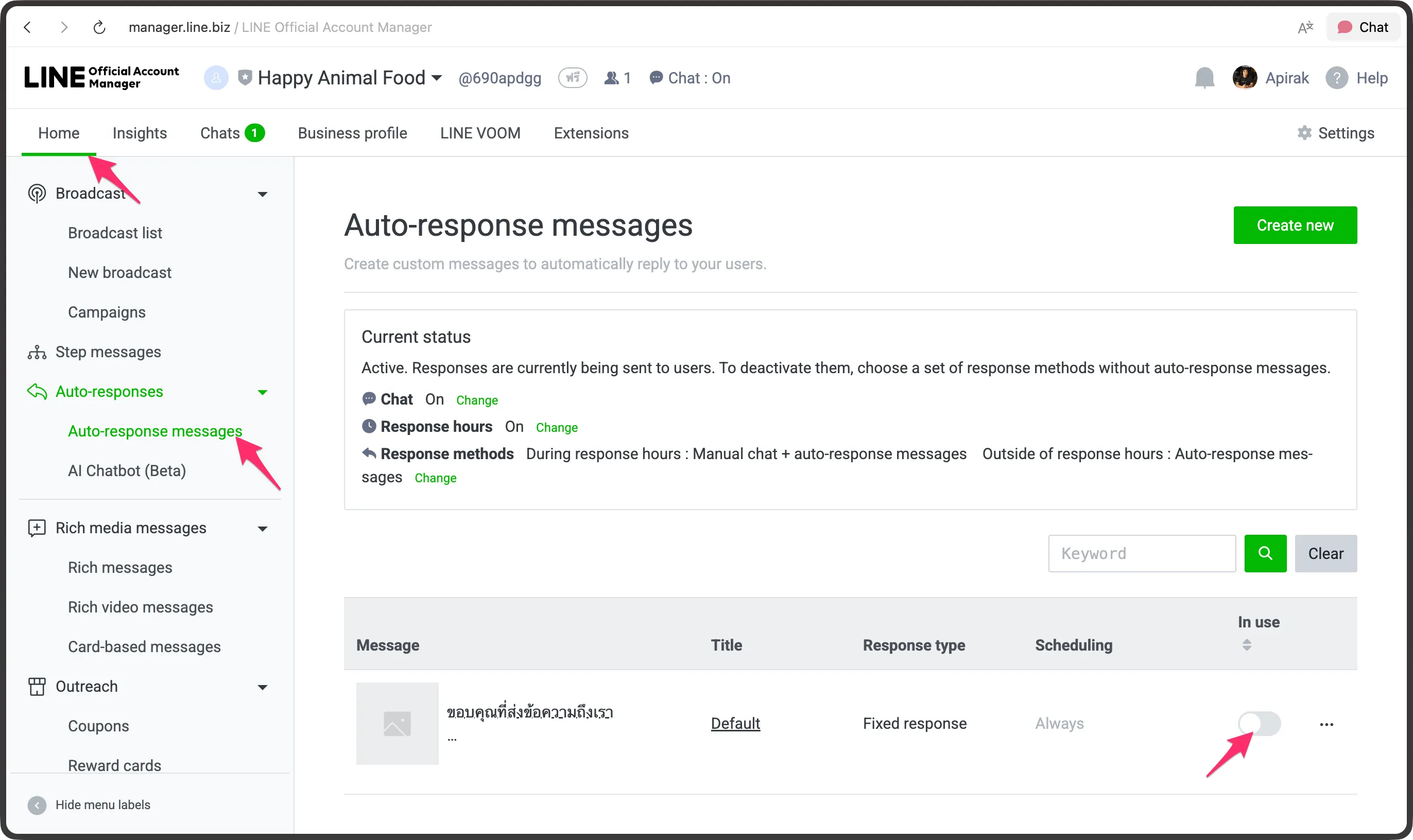
- Disable
Auto-response(In use) to prevent welcome messages from interfering with tests
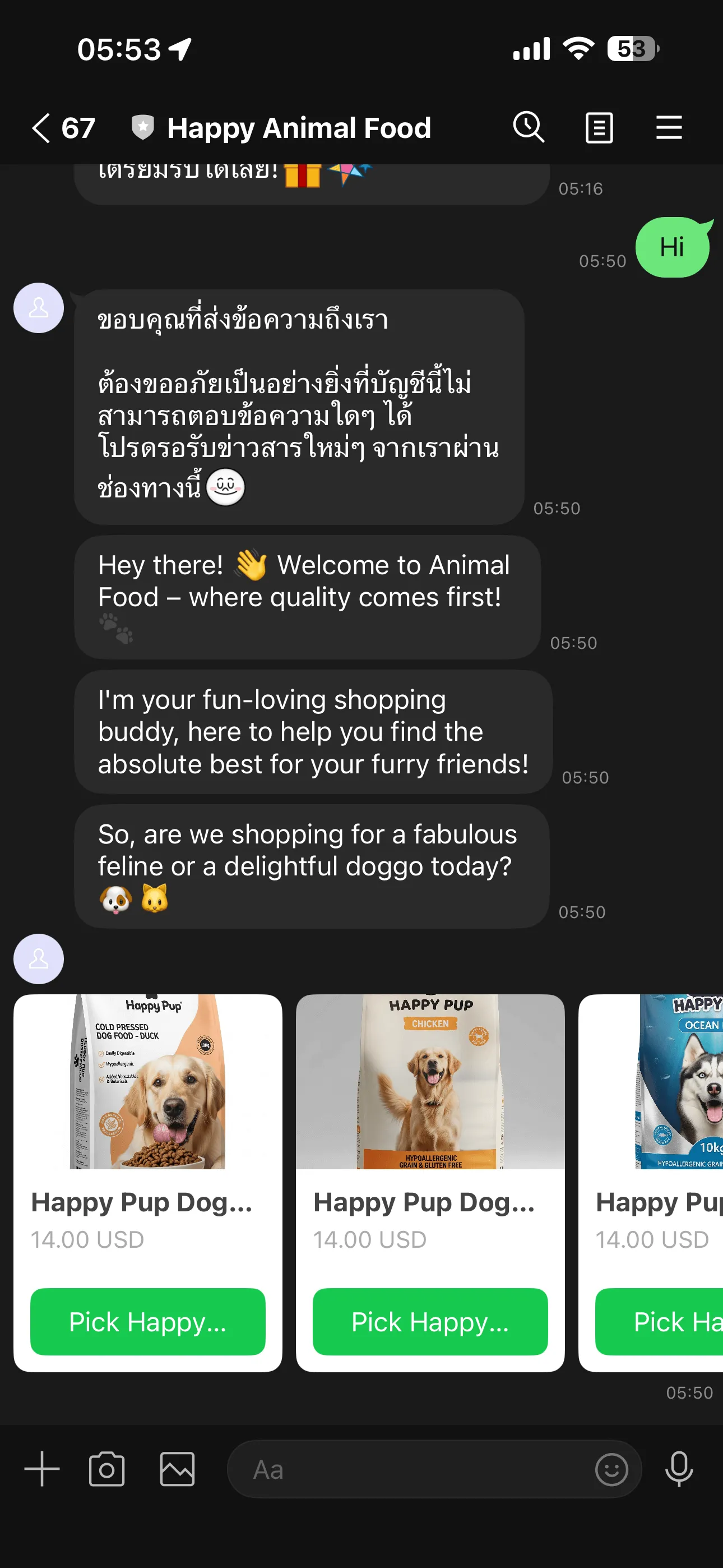
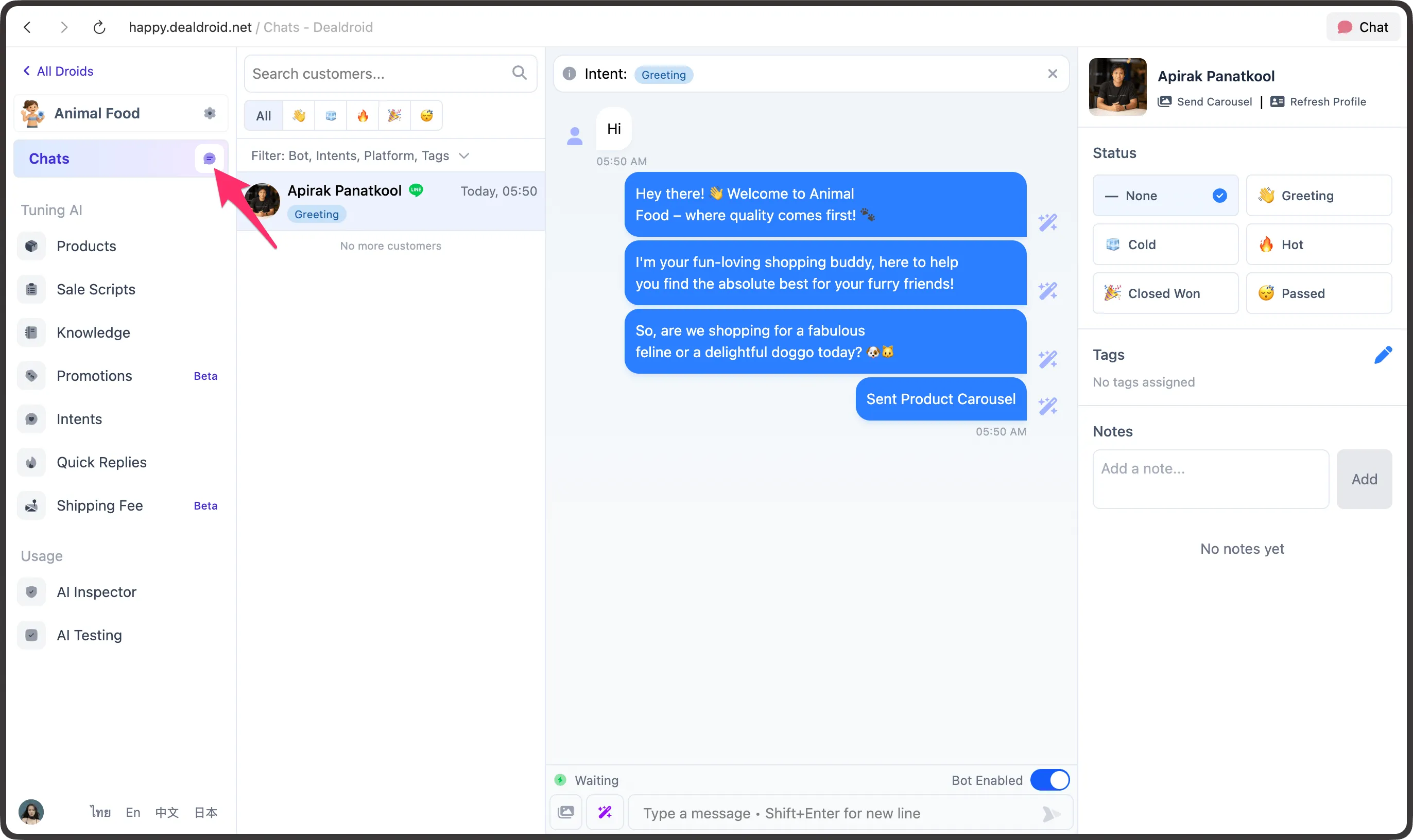
- Send test messages to your LINE OA and verify AI replies in DealDroid Chat
Field mapping
Section titled “Field mapping”| Field (DealDroid) | Found in LINE |
|---|---|
| Channel Name | Set in DealDroid |
| Channel ID | Messaging API → Basic settings |
| Channel Secret | Messaging API → Channel secret |
| Webhook URL | Copy from DealDroid → paste into LINE Messaging API |
| Access Token | LINE Developers Console → Messaging API → Issue (long-lived) |
Troubleshooting — common issues (short)
Section titled “Troubleshooting — common issues (short)”- Webhook not working: ensure
Use webhookis enabled,Webhook URLis correct (https, no spaces) and saved - AI not replying but messages reach DealDroid: check
Access Tokenis correct/long-lived and inspect DealDroid Chat logs - Wrong or unexpected replies: check Knowledge Base mapping and sales scripts in DealDroid
- Can’t create/copy Channel Secret or Token: check account permissions (admin rights in Provider may be required)
- Duplicate auto-responses: disable LINE Auto-response (In use) before testing
Next steps
Section titled “Next steps”- Test from multiple numbers/devices to cover edge cases
- Add Knowledge Base content and products so the Droid can answer business questions and recommend items
- If issues persist, collect screenshots and logs and contact the DealDroid team for support
You’re all set — your AI Sales Agent is ready on LINE OA 🎉