
Define Customer Status
Ready to manage your customers more efficiently? The Customer Status system helps you filter and prioritize customers intelligently, so you can focus your limited time on the most important customers first.
Ever had multiple customers reaching out at once and didn’t know who to handle first? This system is built to solve that problem!
Why Status Matters
Section titled “Why Status Matters”- 🎯 Clear prioritization — Hot leads ready to buy should get attention before undecided customers
- ⚡ Use time efficiently — Admins with limited time can focus on customers with the highest chance of closing
- 💰 Increase sales — Attend to ready-to-buy customers on time, reducing chances they’ll go elsewhere
- 📊 See the big picture — Know how many customers are in each stage of your sales funnel
- 🔄 Automate workflows — AI can assign status automatically based on detected intents
Difference Between Status and Intent
Section titled “Difference Between Status and Intent”Intent tells you “what they’re interested in” (e.g., asking price, inquiring about shipping, wanting products)
Status tells you “what stage of buying they’re in” (e.g., still uncertain, ready to buy, deal closed)
Example: A customer might have an Intent of “asking price” but their Status could be “Hot Lead” (if ready to buy) or “Cold Lead” (if just checking prices)
Default Statuses and Meanings
Section titled “Default Statuses and Meanings”When you create a new Droid, the system automatically sets up 5 default statuses:
👋 Greeting (Initial Contact)
Section titled “👋 Greeting (Initial Contact)”Customer just started showing interest — Has initial awareness but hasn’t decided anything yet, waiting for information from us
Behavior: Greeting, asking general questions, just browsing
What to do:
- Reply quickly
- Provide complete information
- Ask questions back to understand their needs
❄️ Cold Lead (Not Ready / Inactive)
Section titled “❄️ Cold Lead (Not Ready / Inactive)”Not ready to buy right now — Might be comparing prices with other stores or just checking prices for later
Behavior: Read but don’t reply, slow responses, says “let me look first”
What to do:
- Don’t be pushy, wait for the right moment
- Keep contact information
- Use follow-up or broadcast promotions to re-engage later
🔥 Hot Lead (High Intent / Ready to Buy)
Section titled “🔥 Hot Lead (High Intent / Ready to Buy)”Customer has decided to buy 80-90% — Just needs final confidence or payment steps
Behavior: Asking detailed specs, requesting payment info, trying to negotiate price, asking about shipping
What to do: ⚡ Most urgent!
- Summarize order clearly
- Push to close the sale
- Send payment information immediately
- Reply as fast as possible, don’t let them wait
🎉 Closed Won (Deal Closed)
Section titled “🎉 Closed Won (Deal Closed)”Sales mission complete — Moving to fulfillment and after-sales service
Behavior: Sent payment slip, provided shipping address, waiting for delivery
What to do:
- Thank the customer
- Provide tracking number and follow delivery
- Invite to join membership or community
- Build long-term relationship for future purchases
😴 Passed (Move On / Deal Lost)
Section titled “😴 Passed (Move On / Deal Lost)”Customer not interested in buying now — May have declined, looking for unavailable products, or not responding
Behavior: Declined, looking for products not available, no response for a long time
What to do:
- Thank them for their interest
- Suggest similar products (if available)
- End conversation politely
- Move to Archive to keep inbox clean
- Focus on other customers instead
Filtering Customers by Status
Section titled “Filtering Customers by Status”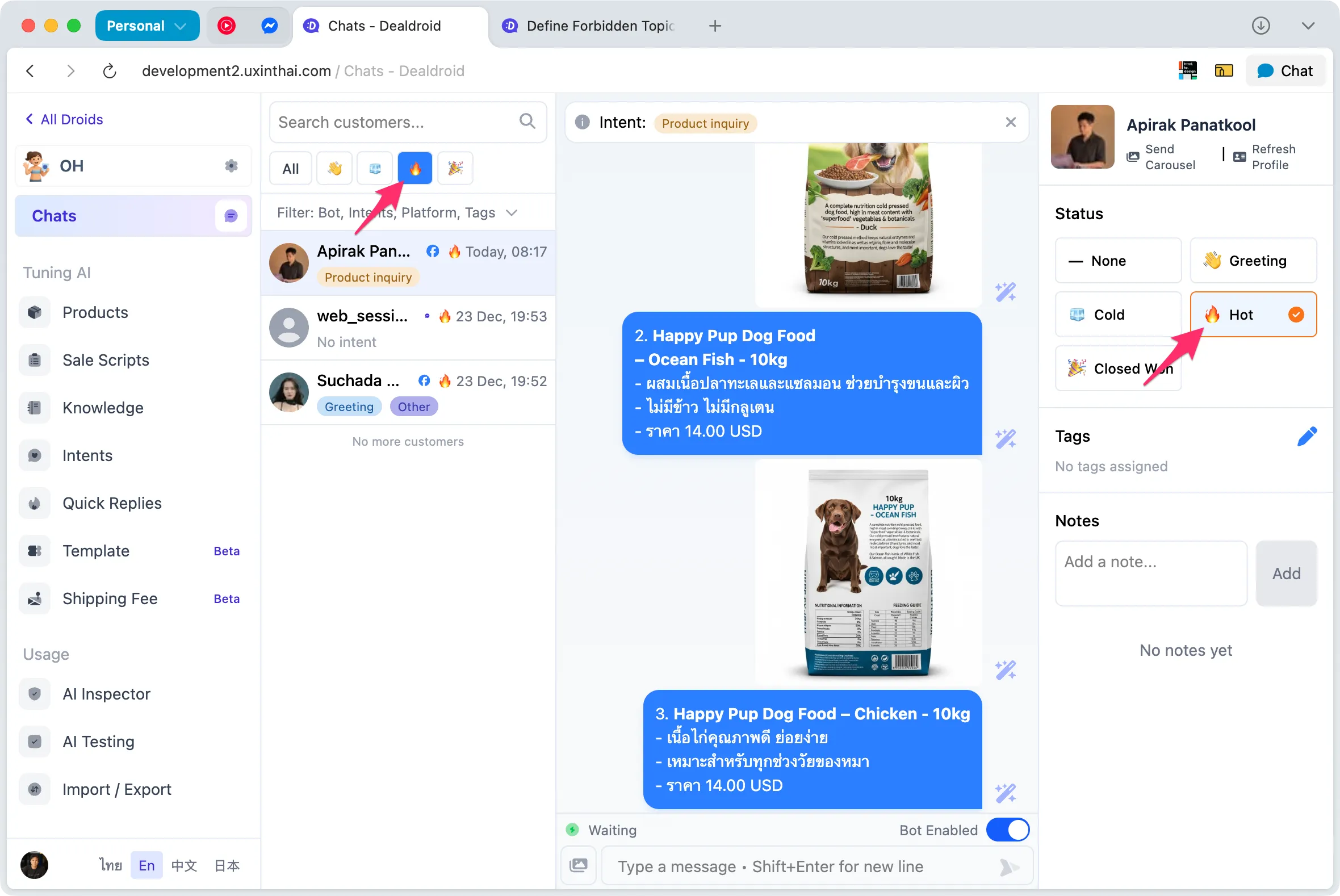
On the Chat page, you’ll see:
- Filter buttons on the left — Shows all statuses you’ve configured
- [All] button — Shows all customers regardless of status
- Other status buttons — Click to filter only customers in that status
How to use
Section titled “How to use”- Click the status button you want (e.g., Hot Lead)
- System will show only customers in that status
- Select a customer
- View customer details on the right
- Can change customer’s status from this page
💡 Tip: Start every day by checking Hot Leads first to not miss any closing opportunities
Managing Statuses
Section titled “Managing Statuses”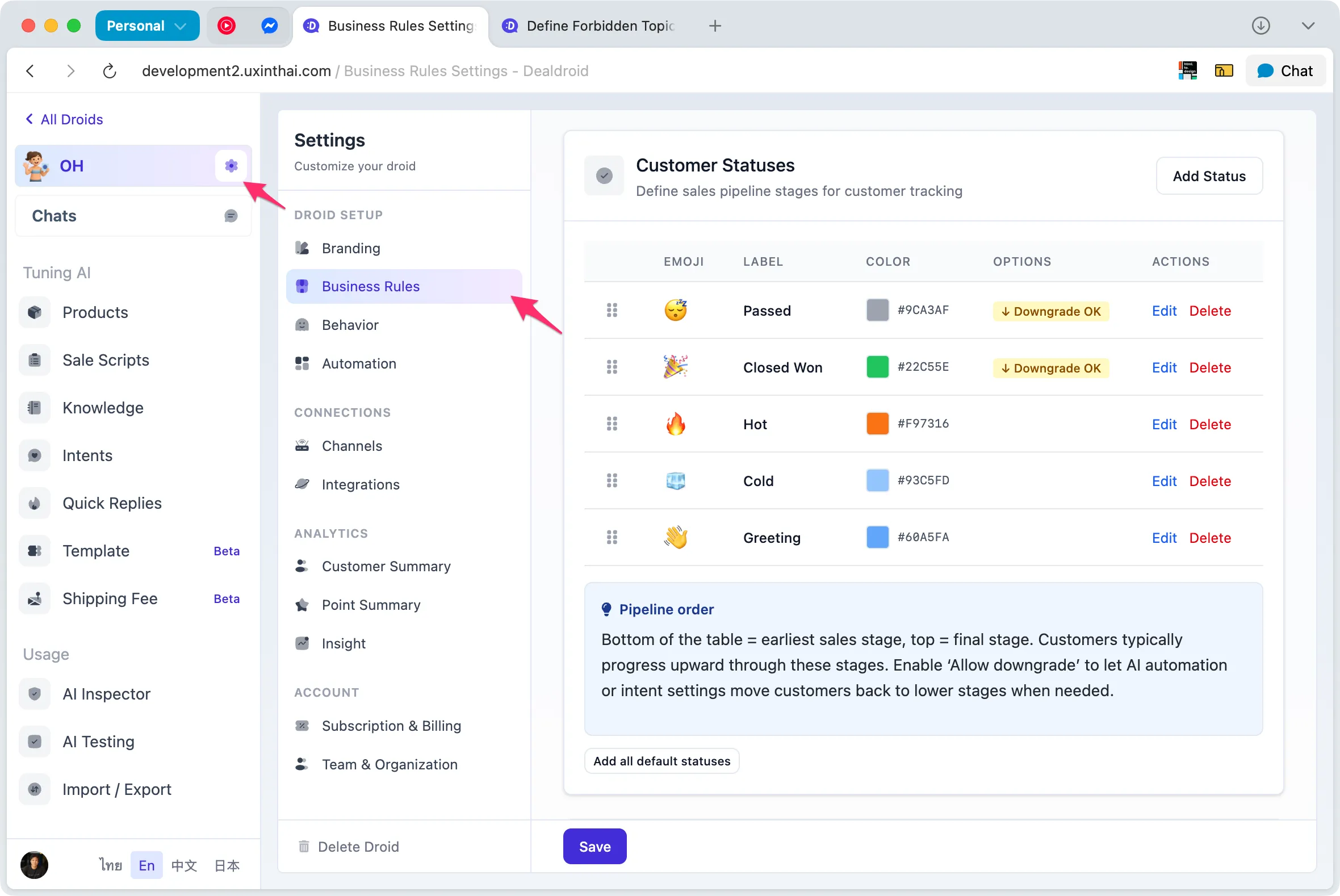
How to access Status management
Section titled “How to access Status management”- Go to Settings
- Select Business Rule
- Find the Status section
Available features
Section titled “Available features”- View all statuses — See overview of existing statuses
- Reorder statuses — Drag and drop the 6-dot icon (⠿) in front of each status to reorder
- Edit status — Click Edit button to change details
- Add new status — Click Add Status button
- Delete status — Remove unwanted status (with conditions - see below)
Creating or Editing a Status
Section titled “Creating or Editing a Status”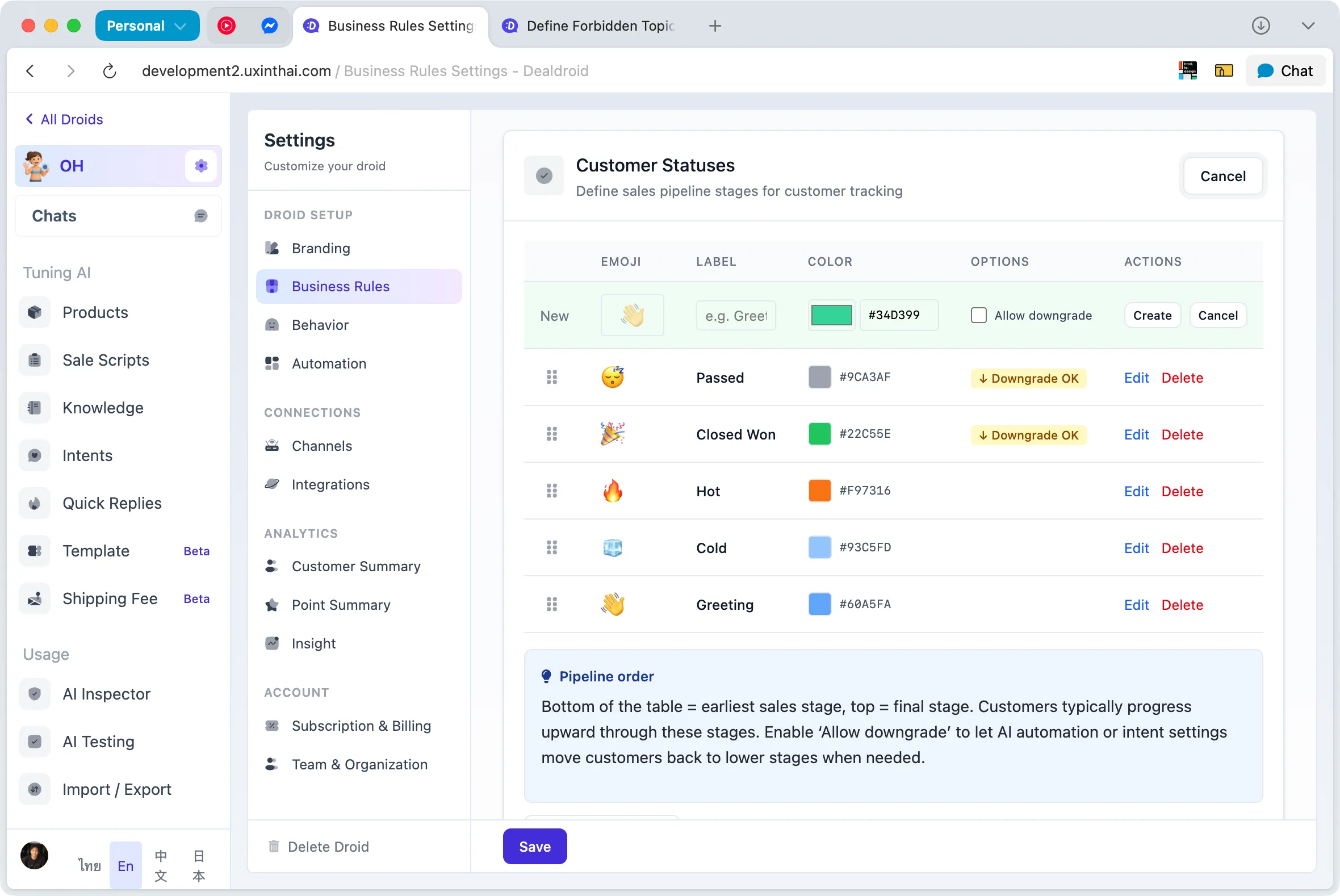
When you click Add Status or Edit, the system will show a form with these fields:
Emoji (Icon Symbol)
Section titled “Emoji (Icon Symbol)”Used as a shorthand symbol to help remember and distinguish when filtering statuses
Examples:
- 👋 for Greeting
- ❄️ for Cold Lead
- 🔥 for Hot Lead
- 🎉 for Closed Won
- 😴️ for Passed
Tips:
- Choose emojis with clear meanings
- Use different colors and shapes for easy recognition
Label (Status Name)
Section titled “Label (Status Name)”The name of the status that will be displayed in the system
Examples:
- “Greeting”
- “Cold Lead”
- “Hot Lead - Ready to Buy”
- “Closed Won - Paid”
- “Passed - Not Interested”
Tips:
- Use clear, short, concise names
- Can use any language
- Add short description at the end if needed
Color (Status Color)
Section titled “Color (Status Color)”The color used to display the status on Chat page and reports
How to use:
- Choose different colors for each status
- Use red or orange for urgent statuses (Hot Lead)
- Use green for closed deals (Closed Won)
- Use gray or light blue for non-urgent statuses (Cold Lead, Passed)
Tips:
- Colors help you notice faster, especially with many customers
- Use colors that match the meaning (e.g., 🔥 Hot = red, ❄️ Cold = blue)
Option (Control Settings)
Section titled “Option (Control Settings)”Determines whether status can be downgraded by Intent or AI
Meaning of Upgrade and Downgrade
Section titled “Meaning of Upgrade and Downgrade”Status order from bottom to top (or left to right) has these values:
- Lower status = lower value (e.g., Greeting, Cold Lead)
- Higher status = higher value (e.g., Hot Lead, Closed Won)
Upgrade = Change status to higher value (good ✅) Downgrade = Change status to lower value (undesirable ❌)
How it works
Section titled “How it works”Suppose a customer is in “Hot Lead” status and types “hello”:
-
Detected intent: “Greeting”
-
This intent sets status to “Greeting”
-
But “Greeting” has lower value than “Hot Lead”
-
If set to “Don’t allow downgrade”:
- ❌ System will not change customer’s status from “Hot Lead” to “Greeting”
- ✅ Customer remains in “Hot Lead” as before
-
If set to “Allow downgrade”:
- ✅ System will change customer’s status to “Greeting”
- ⚠️ May miss customers about to buy
More examples
Section titled “More examples”Case 1: Protect Hot Lead
Customer is in “Hot Lead” and asks “is shipping fast?”
- Intent: “Ask about shipping” → Status: “Cold Lead”
- Since Hot Lead > Cold Lead (Downgrade)
- System will not change to Cold Lead
- Customer stays as Hot Lead for admin to follow closely ✅
Case 2: Allow Upgrade
Customer is in “Greeting” and says “can I get payment info?”
- Intent: “Request payment” → Status: “Hot Lead”
- Since Hot Lead > Greeting (Upgrade)
- System will change status to Hot Lead ✅
- Admin can see immediately that customer is ready to buy
Case 3: Manual Change
Admin can always change status manually, whether upgrade or downgrade, by going to the Chat page
- Select the customer
- View customer details on the right
- Change status as needed
- The “Don’t allow downgrade” option only applies to automatic changes by AI or Intent
- Admin maintains 100% control through Chat page
💡 Recommendation: Usually should set to “Don’t allow downgrade” for important statuses (Hot Lead, Closed Won) to prevent AI from changing customers about to buy back to regular customers
Deleting a Status
Section titled “Deleting a Status”General case
Section titled “General case”When you delete a status with no customers using it, the system will delete it immediately
Special case: Customers are using this status
Section titled “Special case: Customers are using this status”If customers already have this status, the system will:
- Archive the status — Won’t delete immediately
- Hide from selection — Admin can’t assign this status to new customers
- Existing customers keep this status — Until admin changes it
- Delete when no customers use it — When no customers have this status anymore, system will actually delete it
How to Restore archived status
Section titled “How to Restore archived status”- Go to the same location where you deleted the status
- Click Restore button
- Status will be available for use again
⚠️ Important: Before deleting a status, make sure you’ve changed all customers to another status first, otherwise you won’t be able to delete it
Auto-assign Status via Intent
Section titled “Auto-assign Status via Intent”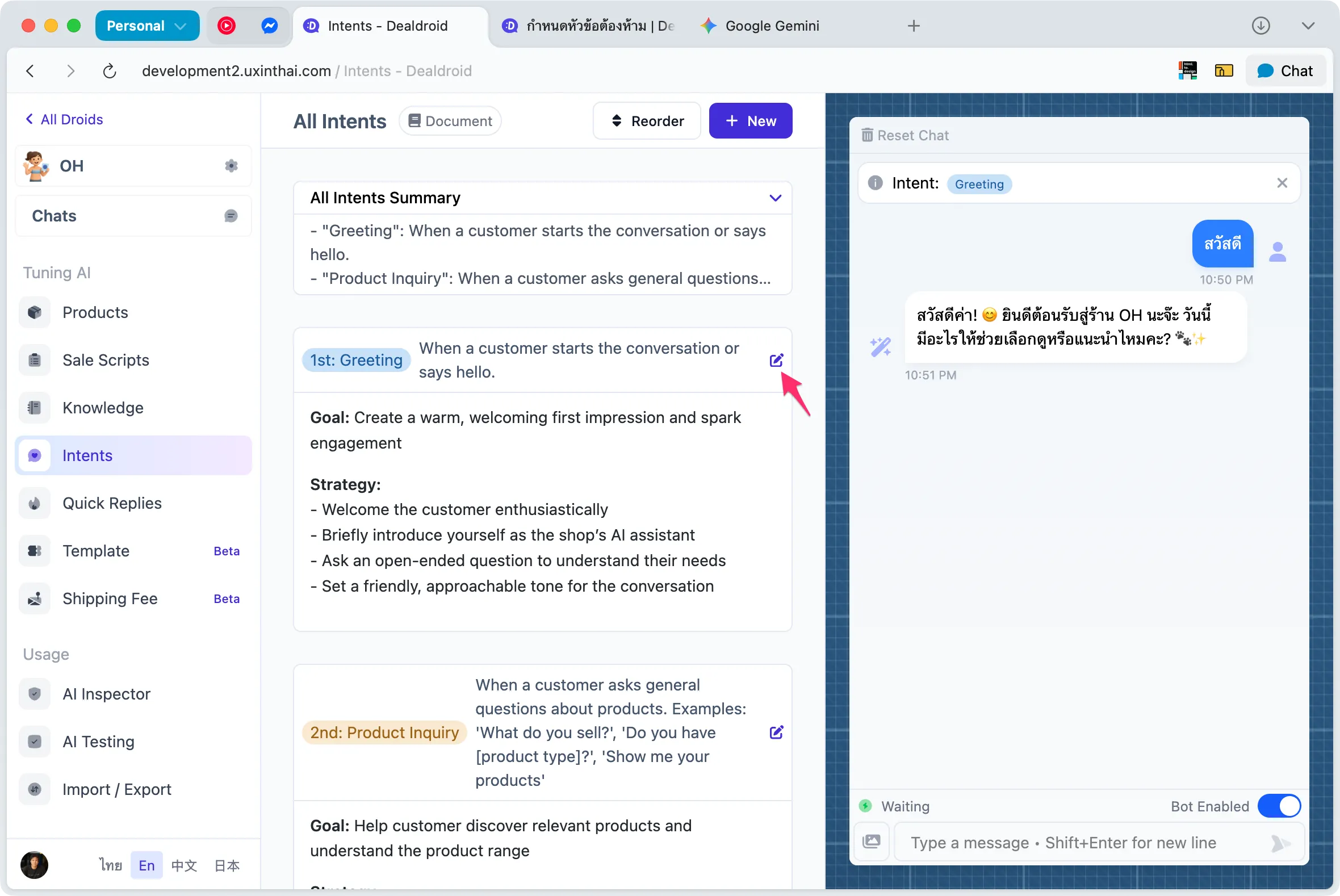
Besides manually assigning status, you can have AI assign it automatically through Intent
Step 1: Access Intent editing page
Section titled “Step 1: Access Intent editing page”- Go to Tuning > Intent
- Select the intent you want to edit
- Click Edit button
Step 2: Assign Status in Intent
Section titled “Step 2: Assign Status in Intent”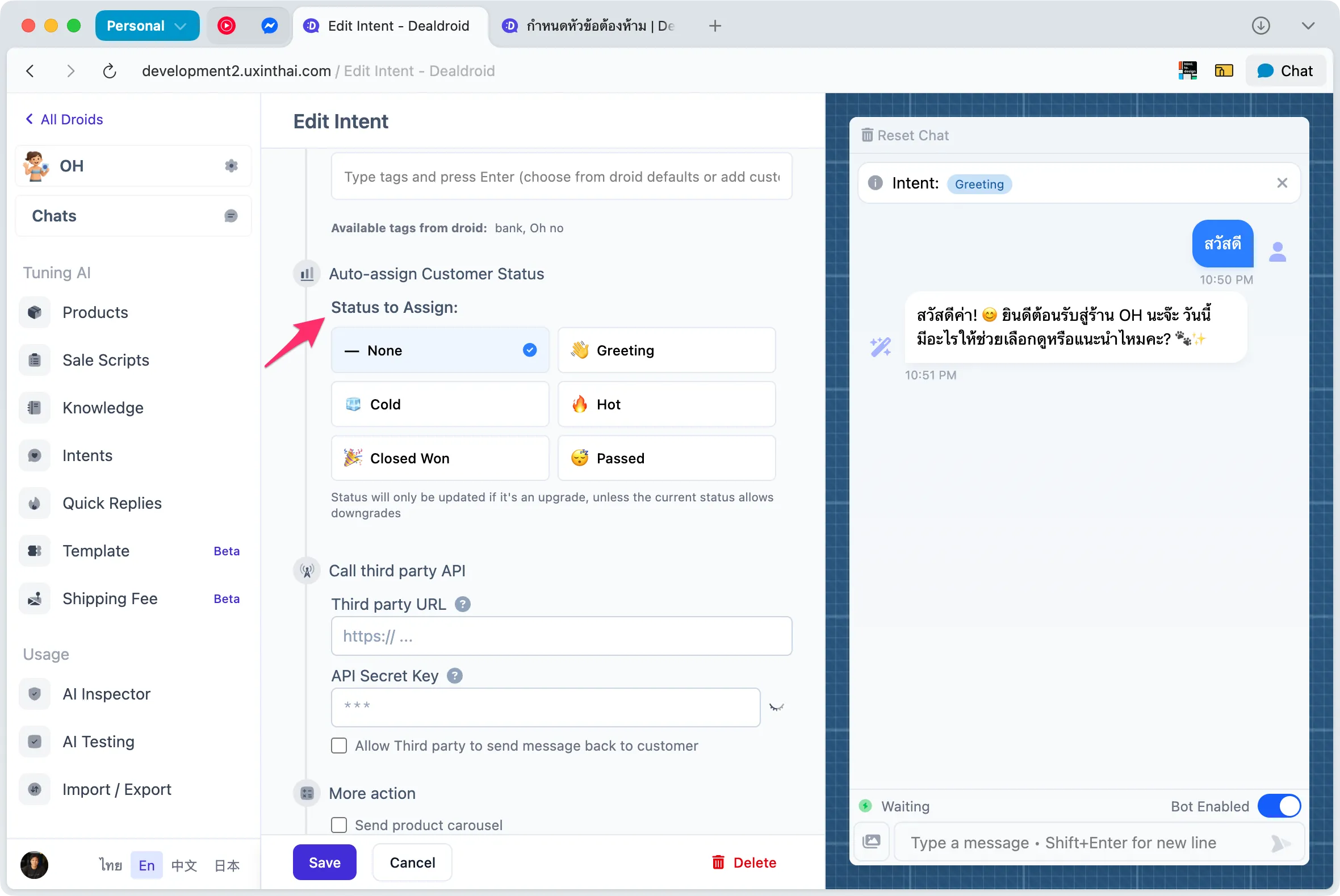
On the Intent edit page:
- Scroll down to Status to Assign section
- Select the status you want to assign when customer matches this intent
- Save settings
How it works
Section titled “How it works”When a customer sends a message matching this intent:
- AI detects the intent
- System assigns the selected status to the customer automatically
- Condition: Can only assign as Upgrade (according to Option settings)
Usage examples
Section titled “Usage examples”Intent: “Request payment info”
- Status to Assign: Hot Lead
- Result: When customer asks for payment info, system changes status to Hot Lead immediately
Intent: “Not interested”
- Status to Assign: Passed
- Result: When customer says not interested, system moves to Passed so admin knows not to follow up
Intent: “Ask price”
- Status to Assign: Cold Lead
- Result: When customer asks price but hasn’t decided to buy, system assigns Cold Lead
💡 Tip: Assign status to intents that clearly indicate buying readiness, such as “Request payment info”, “Negotiate price”, “Place order” should be Hot Lead
Example Status Setups for Different Businesses
Section titled “Example Status Setups for Different Businesses”General Online Store
Section titled “General Online Store”| Status | Emoji | When to use |
|---|---|---|
| Greeting | 👋 | First greeting |
| Cold Lead | ❄️ | Asking price, browsing, undecided |
| Hot Lead | 🔥 | Request payment info, negotiate, ready to buy |
| Closed Won | ✅ | Sent payment slip |
| Passed | ⏭️ | Not interested, looking for other products |
Service Business (e.g., Hotel, Clinic)
Section titled “Service Business (e.g., Hotel, Clinic)”| Status | Emoji | When to use |
|---|---|---|
| Inquiry | 💬 | Asking for information |
| Quotation Sent | 📋 | Sent quotation |
| Ready to Book | 🔥 | Ready to book |
| Confirmed | ✅ | Booked, paid |
| Cancelled | ❌ | Cancelled |
B2B Business
Section titled “B2B Business”| Status | Emoji | When to use |
|---|---|---|
| First Contact | 👋 | First contact |
| Qualified Lead | 📊 | Qualified, has potential |
| Proposal Sent | 📄 | Sent proposal |
| Negotiation | 💰 | Negotiating |
| Deal Closed | 🎉 | Deal closed |
| Lost | ⏭️ | Lost opportunity |
Tips for Using Status Effectively
Section titled “Tips for Using Status Effectively”1. Check Hot Leads first every day
Section titled “1. Check Hot Leads first every day”Start each day by filtering for Hot Lead and contact these customers first to not miss closing opportunities
2. Set up intents that indicate buying readiness
Section titled “2. Set up intents that indicate buying readiness”Assign status automatically for these intents:
- “Request payment info” → Hot Lead
- “Request shipping address” → Hot Lead
- “Ready to pay” → Hot Lead
- “Negotiate price” → Hot Lead
3. Use Cold Lead for follow-up
Section titled “3. Use Cold Lead for follow-up”For Cold Lead customers:
- Save their information
- Wait 1-2 days
- Send promotions or special offers to re-engage
- Use broadcast messages to contact this group
4. Move Passed to Archive
Section titled “4. Move Passed to Archive”When sure customer is really not interested:
- Change status to Passed
- Move to Archive
- Keep inbox clean, see only potential customers
5. Analyze data regularly
Section titled “5. Analyze data regularly”Check status statistics regularly to:
- Know how many customers are in each stage
- Find bottlenecks where customers get stuck
- Adjust sales strategy accordingly
6. Don’t forget to update status manually
Section titled “6. Don’t forget to update status manually”Even though AI assigns status automatically, you should:
- Check and correct if wrong
- Update when situation changes
- Use your own judgment
Summary
Section titled “Summary”Using the Customer Status system effectively will help you:
✅ Prioritize — Handle ready-to-buy customers first
✅ Save time — Focus on customers with highest potential
✅ Increase sales — Don’t miss customers about to buy
✅ Automate work — Let AI assign status through intents
✅ See the big picture — Know how many customers in each stage
Start with the 5 default statuses, then customize for your business. Remember to check and update regularly for best results!