
Get AI Answer Async
Need DealDroid AI to help generate answers, but don’t want to keep your connection open waiting? We’ve got async AI processing! Async Answer API lets you send a request and receive the AI answer via Webhook later — no need to keep a connection open while the AI is thinking!
Best For
Section titled “Best For”Async Answer API is perfect for these scenarios:
- ⏱️ Systems that need to set short timeouts — Webhook receivers, Serverless functions, or APIs with timeout limits
- 📬 Systems that need request queuing — For managing load and rate limiting
- 🚀 Fire-and-forget integrations — Send request and receive results via webhook
- 🔄 Background processing — Process AI without blocking or waiting for response
Sync vs Async Comparison
Section titled “Sync vs Async Comparison”| Feature | Sync | Async (this page) |
|---|---|---|
| Response time | 10-120 seconds (wait for AI) | < 100ms (acknowledge instantly) |
| AI Response | In HTTP response | Sent via Webhook |
| Webhook config needed | ❌ No | ✅ Yes |
| Use case | Real-time chat, need answer immediately | Background processing, queuing |
| Timeout handling | Must wait until AI finishes | Return instantly, no timeout issues |
Which one to choose? If your system can wait 10-120 seconds, use the Sync version — it’s simpler. But if you have timeout limits or need queue systems, use the Async version.
How It Works (Overview)
Section titled “How It Works (Overview)”To understand the difference between Sync and Async, let’s look at how both work:
Synchronous (Wait for Answer)
Section titled “Synchronous (Wait for Answer)”Third Party → DealDroid API ⏳ Wait for AI thinking (10-120 seconds) ✅ Get answer back immediatelyThird Party ← AI answerSteps:
- Third Party sends request with question
- Wait for AI to process (10-120 seconds)
- Get answer back immediately in HTTP response
Pros: Simple, get answer immediately in one response
Cons: If timeout is less than 120 seconds, request may timeout
Asynchronous (Receive via Webhook)
Section titled “Asynchronous (Receive via Webhook)”Third Party → DealDroid API ✅ Get requestId instantly (< 100ms)Third Party ← requestId
... AI processes in background (10-120 seconds) ...
Third Party ← Webhook: Answer with requestId WebhookSteps:
- Third Party sends request with question
- Get
requestIdback instantly (don’t wait for AI) - AI processes in background
- When done, system sends webhook with answer and
requestId - Third Party matches
requestIdto know which request this answer is for
Pros: No timeout issues, supports queuing
Cons: Need to configure webhook endpoint and handle async flow
Configuration
Section titled “Configuration”Step 1: Go to Integrations Page
Section titled “Step 1: Go to Integrations Page”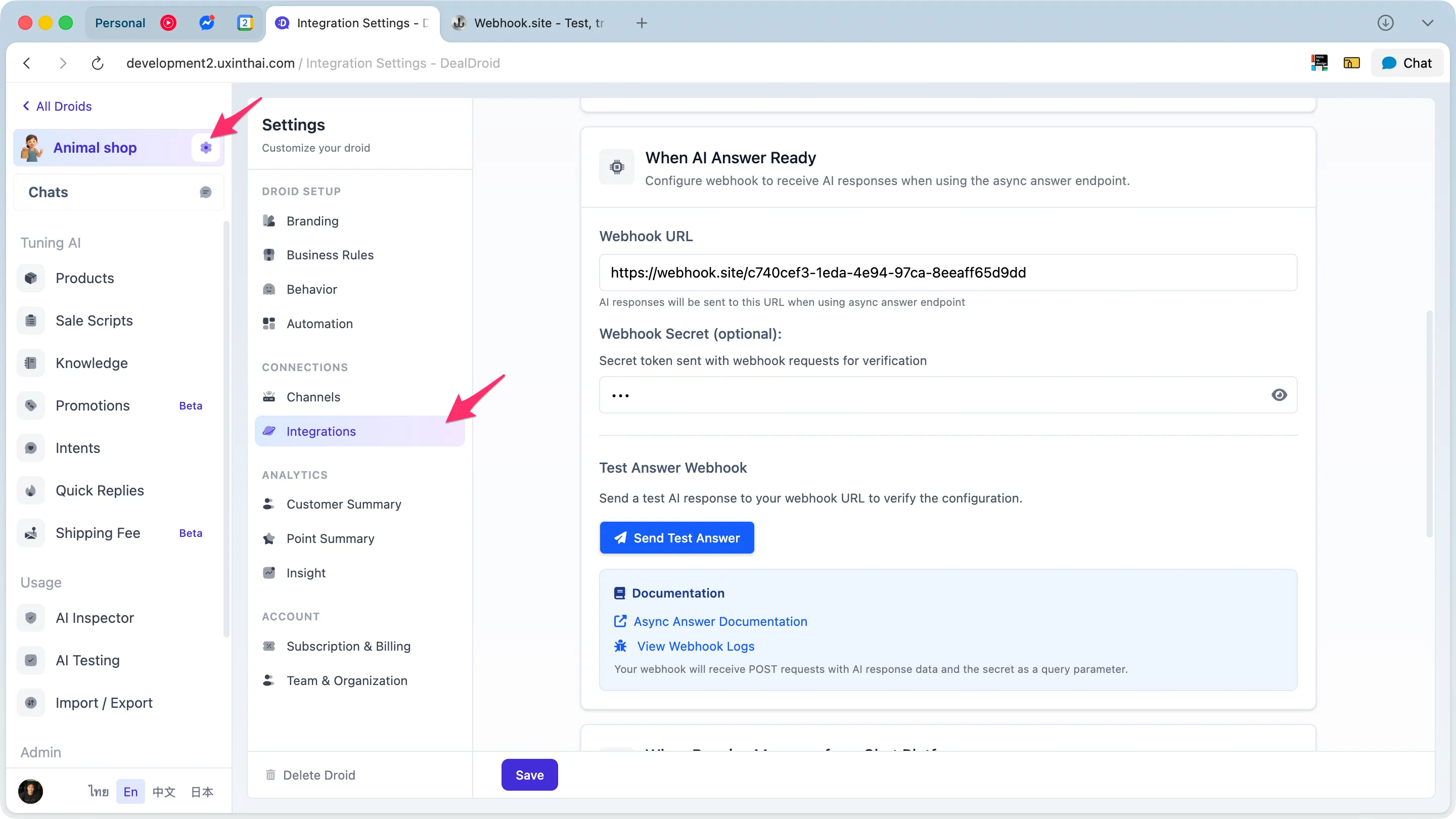
Navigate to the integration settings page:
- Log in to your DealDroid dashboard
- Go to Settings > Integrations
Step 2: Configure “When AI Answer Ready”
Section titled “Step 2: Configure “When AI Answer Ready””In the “When AI Answer Ready” section, you’ll find fields to configure your webhook:
Webhook URL (Required)
Section titled “Webhook URL (Required)”The URL where the system will send AI responses when processing is complete.
Example:
https://your-server.com/answer-webhookRequirements:
- Must be HTTPS URL (for production)
- Must accept HTTP POST requests
- Must return HTTP 2xx to acknowledge (200 OK recommended)
- Should respond within 5 seconds
Tips:
- Use webhook.site for initial testing
- Verify URL is accessible from the internet (not localhost)
- You can use ngrok for local development testing
Webhook Secret (Optional)
Section titled “Webhook Secret (Optional)”Secret key to verify that requests come from DealDroid
Example: your_secure_secret_key_2026
Best practices:
- Use random string at least 32 characters long
- Store as environment variable on your server
- Never commit to version control
- Rotate periodically for security
How it works: The system will append the secret as a query parameter:
https://your-server.com/answer-webhook?secret=your-secret-hereNote: Although the secret is optional, we strongly recommend setting it for security.
Step 3: Test Webhook
Section titled “Step 3: Test Webhook”After entering your Webhook URL, you can test immediately:
- Click “Send Test Answer” button
- System will send test payload to your configured webhook URL
- Verify that your webhook received the request and returned 200 OK
API Reference
Section titled “API Reference”Endpoint
Section titled “Endpoint”POST /api/droids/:droidId/endpoint/get-droid-answer-asyncReplace :droidId with your actual Droid ID.
Authentication
Section titled “Authentication”Use Third Party API Key in Authorization header:
Authorization: Bearer {your-api-key}How to find API Key: Go to Automation Panel > “When Receive message from Third Party” → Copy Bearer token
Request Body
Section titled “Request Body”{ "humanMessage": { "content": "What's the price?", "type": "human" }, "chatHistory": [ { "content": "Hello", "type": "human" }, { "content": "Hello! Welcome. How can I help you?", "type": "ai" } ]}Parameters
Section titled “Parameters”| Field | Type | Required | Description |
|---|---|---|---|
| humanMessage | object | ✅ Yes | Message from user |
| humanMessage.content | string | ✅ Yes | Message content |
| humanMessage.type | string | ❌ No | Message type (default: “human”) |
| chatHistory | array | ❌ No | Previous conversation history for AI context |
Immediate Response
Section titled “Immediate Response”System will respond immediately after receiving request (within 100ms):
{ "success": true, "requestId": "tpa-cm5xyz123abc456def", "message": "Answer request queued. Response will be sent to your configured webhook."}Response Fields
Section titled “Response Fields”| Field | Type | Description |
|---|---|---|
| success | boolean | Request acceptance status |
| requestId | string | ID for tracking request (starts with tpa-) |
| message | string | Description that request is queued and webhook will be sent |
Error Responses
Section titled “Error Responses”400 Bad Request - Webhook not configured
Section titled “400 Bad Request - Webhook not configured”{ "error": "Bad Request", "message": "thirdPartyAnswerWebhook is not configured. Please set up the webhook URL in Settings > Integrations before using async answer endpoint."}Fix: Configure Webhook URL in Settings > Integrations first
400 Bad Request - Missing Test Customer
Section titled “400 Bad Request - Missing Test Customer”{ "error": "Bad Request", "message": "Droid Missing Test Customer Id"}Fix: Verify your Droid has a Test Customer configured
400 Bad Request - Invalid message format
Section titled “400 Bad Request - Invalid message format”{ "error": "Bad Request", "message": "Invalid humanMessage format"}Fix: Verify humanMessage has content field and is a string
401 Unauthorized - Invalid API Key
Section titled “401 Unauthorized - Invalid API Key”{ "error": "Unauthorized", "message": "Invalid API key"}Fix: Check Bearer token in Authorization header
Webhook Response Format
Section titled “Webhook Response Format”When AI processing is complete (takes 10-120 seconds), the system will send a POST request to your configured webhook URL.
Success Response
Section titled “Success Response”{ "requestId": "tpa-d5cacv27v60xfhlqpap1gm76", "droidId": 5, "customerId": 5, "responses": [ { "lc": 1, "type": "constructor", "id": ["langchain_core", "messages", "AIMessage"], "kwargs": { "content": "This product costs $599. We have a 10% discount if you buy 2 or more!", "additional_kwargs": {}, "tool_calls": [], "invalid_tool_calls": [], "response_metadata": {} } } ], "addressParsing": { "street_address": "", "subdistrict": "", "district": "", "city": "", "postal_code": "", "country": "" }, "customerInsight": { "forbidden_topics": "no", "user_intent": "Asking about product pricing", "intents": ["product_inquiry"], "product_keyword": [], "user_language": "English", "contact_info": { "name": "", "phone": "", "email": "" }, "has_extractable_info": false }, "shoppingCart": { "products": [], "shippingFee": "10", "grandTotal": "0.00 THB" }, "customExtractedInfo": {}, "answer": "This product costs $599. We have a 10% discount if you buy 2 or more!", "intents": ["product_inquiry"], "executionTime": 13301, "timestamp": "2026-02-11T03:20:24.267Z"}Webhook Payload Fields
Section titled “Webhook Payload Fields”| Field | Type | Description |
|---|---|---|
| requestId | string | ID received when submitting request (for matching) |
| droidId | number | ID of Droid that processed |
| customerId | number | ID of Customer (Test Customer) |
| responses | array | AI responses split by paragraph (need to dig into kwargs.content) |
| addressParsing | object | Extracted address information (if any) |
| customerInsight | object | Customer insights (intent, language, contact info) |
| shoppingCart | object | Shopping cart information |
| customExtractedInfo | object | Data extracted based on Custom Extraction settings |
| answer | string | AI answer as raw text (easiest to use) |
| intents | string[] | Intents detected in the answer |
| executionTime | number | Processing time in milliseconds |
| timestamp | string | Response timestamp (ISO 8601 format) |
💡 Tip: If you just need the answer, use the
answerfield directly. No need to dig into theresponsesarray.
Error Response
Section titled “Error Response”When processing fails:
{ "requestId": "tpa-cm5xyz123abc456def", "droidId": 42, "customerId": 100, "answer": "", "error": "Failed to generate AI response: timeout", "executionTime": 30000, "timestamp": "2026-02-07T10:30:30.000Z"}Error Response Fields
Section titled “Error Response Fields”| Field | Type | Description |
|---|---|---|
| error | string | Error message (only present when error occurs) |
| answer | string | Will be empty string when error occurs |
Error handling: Check if
errorfield exists. If yes, an error occurred. You should retry or log for debugging.
Webhook URL Format (with Secret)
Section titled “Webhook URL Format (with Secret)”If you configured a secret, the system will append it as a query parameter:
POST https://your-server.com/answer-webhook?secret=your-secret-hereHow to verify:
// Express.js exampleapp.post("/answer-webhook", (req, res) => {  const { secret } = req.query;
  if (secret !== process.env.DEALDROID_WEBHOOK_SECRET) {    return res.status(401).json({ error: "Invalid secret" });  }
  // Process webhook...});
Testing Guide
Section titled “Testing Guide”Method 1: Use webhook.site (Recommended for beginners)
Section titled “Method 1: Use webhook.site (Recommended for beginners)”webhook.site is a free service for receiving and viewing webhook requests.
Steps:
Section titled “Steps:”-
Open https://webhook.site
The system will automatically create a unique URL, e.g.:
https://webhook.site/abc12345-1234-5678-abcd-1234567890ab -
Copy URL to DealDroid
- Go to Settings > Integrations
- Paste URL in “When AI Answer Ready” > Webhook URL
- Click Save
-
Test with “Send Test Answer” button
- Click button in UI
- Go back to webhook.site to see incoming request
- Check received payload
-
Test with real API
Terminal window curl -X POST "https://your-domain.com/api/droids/123/endpoint/get-droid-answer-async" \-H "Authorization: Bearer YOUR_API_KEY" \-H "Content-Type: application/json" \-d '{"humanMessage": {"content": "What products do you have?"}}' -
Wait for AI response at webhook.site
- Takes about 10-120 seconds
- You’ll see a new POST request
- View JSON payload with
answer,intents,executionTime
Method 2: Test with cURL (for developers)
Section titled “Method 2: Test with cURL (for developers)”Basic request:
Section titled “Basic request:”curl -X POST "https://your-domain.com/api/droids/123/endpoint/get-droid-answer-async" \ -H "Authorization: Bearer YOUR_API_KEY" \ -H "Content-Type: application/json" \ -d '{ "humanMessage": { "content": "Hello" } }'Request with chat history:
Section titled “Request with chat history:”curl -X POST "https://your-domain.com/api/droids/123/endpoint/get-droid-answer-async" \ -H "Authorization: Bearer YOUR_API_KEY" \ -H "Content-Type: application/json" \ -d '{ "humanMessage": { "content": "What is the price?" }, "chatHistory": [ {"content": "What products do you have?", "type": "human"}, {"content": "We have products A, B, C", "type": "ai"} ] }'Response received (immediately):
Section titled “Response received (immediately):”{ "success": true, "requestId": "tpa-cm5xyz123abc456def", "message": "Answer request queued. Response will be sent to your configured webhook."}Method 3: Debug Webhooks Page
Section titled “Method 3: Debug Webhooks Page”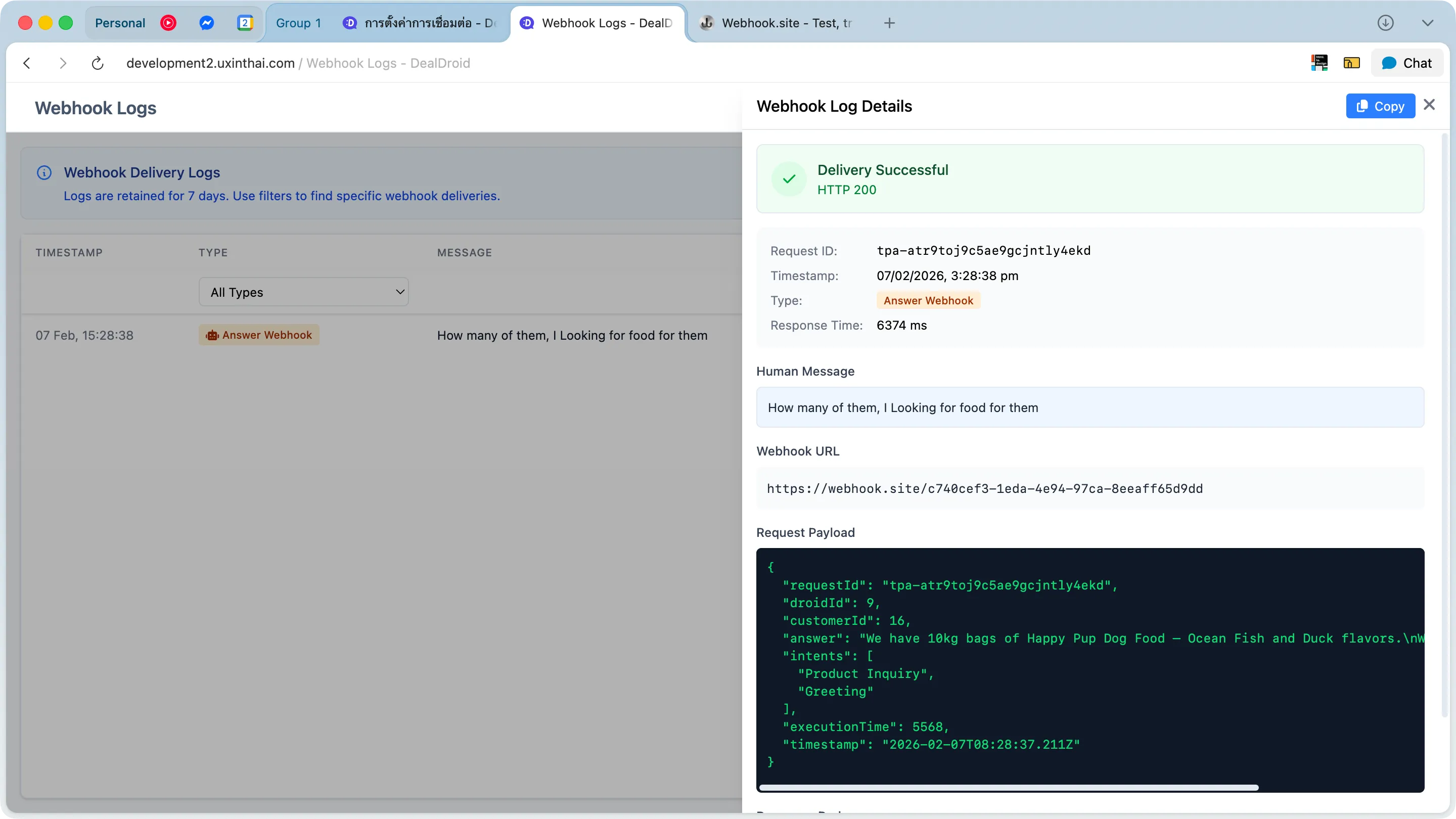
View all webhook sending history at:
/droids/{droidId}/debug/webhooksInformation shown:
- ✅ Webhook URL sent to
- ✅ HTTP Status received (200, 404, 500, etc.)
- ✅ Request payload sent
- ✅ Response body received
- ✅ Response time (duration)
- ✅ Error message (if any)
- ✅ Timestamp of each request
Use cases:
- Debug when webhook doesn’t work
- Check actual payload sent
- View error messages from your server
- Track webhook history
Method 4: Internal Echo Endpoint (for dev/testing)
Section titled “Method 4: Internal Echo Endpoint (for dev/testing)”DealDroid has an endpoint for echoing webhooks (for testing):
https://your-domain.com/api/droids/{droidId}/test-async-answer-webhookHow to use:
- Use this URL as webhook URL
- Requests will be logged in server
- View logs for debugging
Note: For development only. Do not use in production.
Best Practices
Section titled “Best Practices”1. Return 200 Quickly ⚡
Section titled “1. Return 200 Quickly ⚡”// ✅ Good - Return immediately, then processres.status(200).json({ received: true });setImmediate(() => processAnswer(data));
// ❌ Bad - Process first, then return (slow)await processAnswer(data);res.status(200).json({ received: true });Why? If your webhook takes too long, DealDroid may timeout and retry sending.
2. Verify Secret Every Time 🔒
Section titled “2. Verify Secret Every Time 🔒”// ✅ Good - Verify before doing anythingif (secret !== process.env.DEALDROID_WEBHOOK_SECRET) { return res.status(401).json({ error: "Invalid secret" });}
// ❌ Dangerous - No verification (anyone can call)// No secret verificationWhy? To prevent others from sending fake webhooks.
3. Use requestId for Deduplication 🔄
Section titled “3. Use requestId for Deduplication 🔄”// ✅ Good - Check if already processedconst exists = await db.webhooks.findOne({ requestId });if (exists) { console.log(`[${requestId}] Already processed, skipping`); return res.status(200).json({ received: true, duplicate: true });}
await db.webhooks.create({ requestId, answer, processedAt: new Date() });Why? In case of retry, webhooks may be sent multiple times. Must prevent duplicate processing.
Webhook Log Retention
Section titled “Webhook Log Retention”Retention Period
Section titled “Retention Period”- Webhook logs are kept for 7 days
- After 7 days, logs are automatically deleted
- System cleanup runs with scheduled command
Viewing Logs
Section titled “Viewing Logs”View webhook logs in 2 ways:
-
Debug Webhooks Page -
/droids/{droidId}/debug/webhooks- Shows all requests/responses
- Filter by status, date range
- View details of each webhook
-
Server Logs - For admins
- Manual command:
node ace cleanup:webhook-logs - Cron job runs automatically daily
- Manual command:
Best Practices for Logging
Section titled “Best Practices for Logging”- Keep logs on your side too - Don’t rely only on DealDroid logs
- Export important ones - If webhooks are critical, export and save them
- Track requestId - Use requestId to match between two systems
Frequently Asked Questions (FAQ)
Section titled “Frequently Asked Questions (FAQ)”Q: Why use Async instead of Sync?
Section titled “Q: Why use Async instead of Sync?”A: Use Async when:
- Your system has timeout less than 180 seconds (e.g., Serverless functions)
- Need to queue requests for load management
- Want fire-and-forget pattern (send then continue other work)
If your system can wait and needs immediate answer, use Sync version — it’s simpler.
Q: Must webhook URL be HTTPS only?
Section titled “Q: Must webhook URL be HTTPS only?”A: Yes, for production it must be HTTPS for security. However, for development testing you can use:
- webhook.site (automatically HTTPS)
- ngrok for tunneling localhost (provides HTTPS URL)
Q: What happens if my webhook doesn’t return 200 OK?
Section titled “Q: What happens if my webhook doesn’t return 200 OK?”A: DealDroid will retry sending the webhook (according to retry policy). If still unsuccessful, it will be logged as failed. You can view it in Debug Webhooks page.
Tips: Have your webhook return 200 OK as fast as possible (within 1-2 seconds) then process in background.
Q: How do I know webhooks come from DealDroid?
Section titled “Q: How do I know webhooks come from DealDroid?”A: Use Webhook Secret configured in settings. System will send it as query parameter ?secret=your-secret. Verify this secret on your server:
if (req.query.secret !== process.env.DEALDROID_WEBHOOK_SECRET) { return res.status(401).json({ error: "Invalid secret" });}Q: Can webhooks be sent multiple times?
Section titled “Q: Can webhooks be sent multiple times?”A: Yes, in cases where:
- Your webhook doesn’t return 200 OK
- Network timeout occurs
- DealDroid retries due to error
Fix: Use requestId for deduplication - check if this requestId has been processed. If yes, skip.
Q: How many seconds does AI take to answer?
Section titled “Q: How many seconds does AI take to answer?”A: Typically takes 10-120 seconds depending on:
- Question complexity
- Chat history size
- AI system load at that time
You can see actual time from executionTime field in webhook response (in milliseconds).
Q: Can I test without a real webhook endpoint?
Section titled “Q: Can I test without a real webhook endpoint?”A: Yes! Use webhook.site:
- Open webhook.site → get unique URL
- Copy URL to Settings > Integrations
- Send request to API
- Go back to webhook.site to see payload sent
Q: Is there rate limiting?
Section titled “Q: Is there rate limiting?”A: Rate limiting depends on your plan. Contact your DealDroid admin for details.
If you exceed rate limit, you’ll get HTTP 429 Too Many Requests.
Q: Where can I view webhook sending logs?
Section titled “Q: Where can I view webhook sending logs?”A: There are 2 ways:
1. From Integrations page (shortcut)
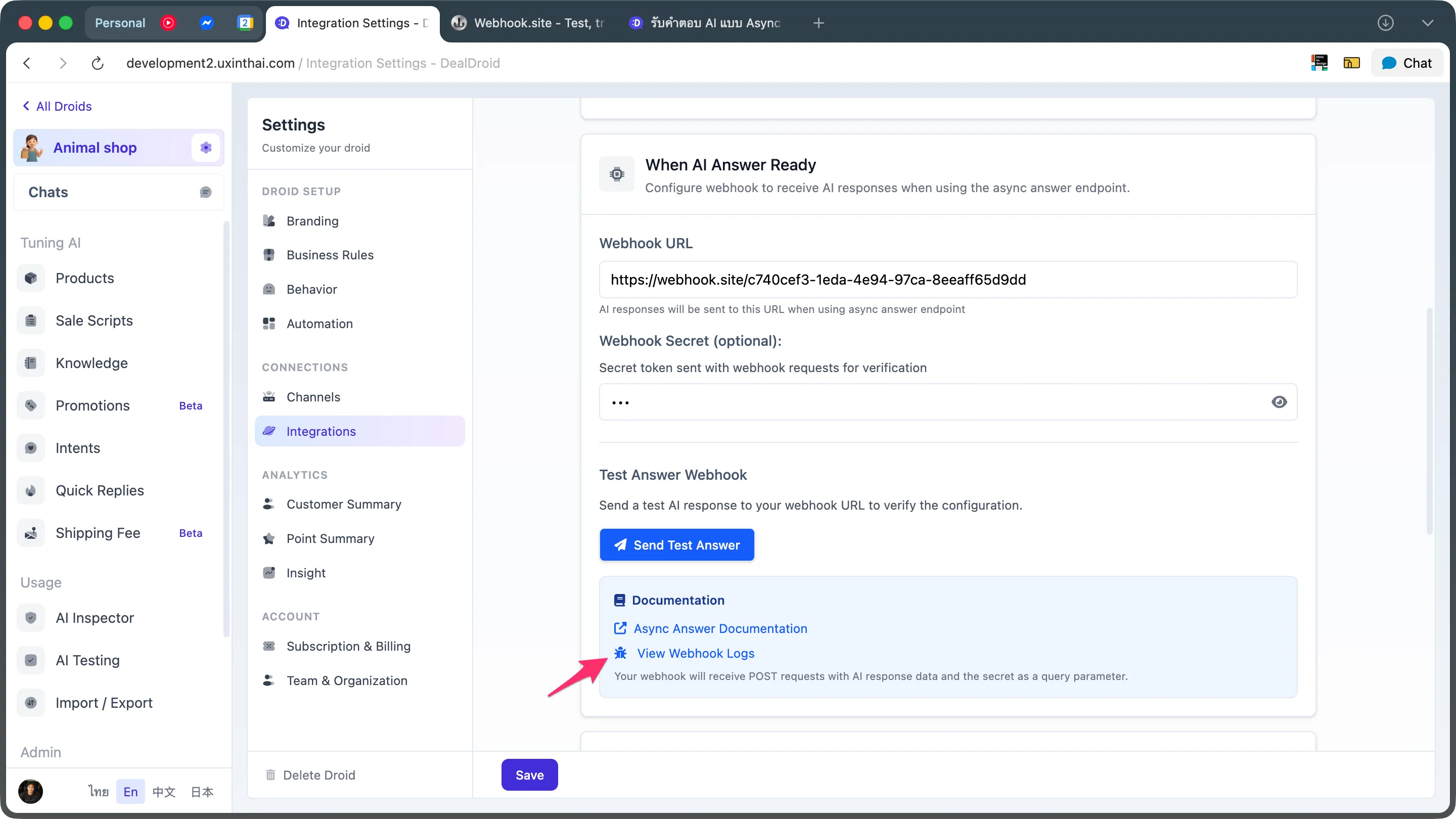
Click on “View webhook sending history” link in Settings > Integrations under “When AI Answer Ready” section.
2. Go to Debug Webhooks page directly
Access at /droids/{droidId}/debug/webhooks
Information shown:
- All webhooks sent (last 7 days)
- HTTP status received
- Request/Response payload
- Error message (if any)
- Response time
Q: Can I change webhook URL?
Section titled “Q: Can I change webhook URL?”A: Yes, go to Settings > Integrations and edit Webhook URL. But you should:
- Test new URL with “Send Test Answer” button first
- Verify URL is accessible from internet
- Update secret (if changed)
Q: What if my API Key is compromised?
Section titled “Q: What if my API Key is compromised?”A: Regenerate your API Key immediately:
- Open Automation Panel
- Go to “When Receive message from Third Party”
- Click Regenerate to create new token
- Update your applications with new token
⚠️ Warning: Old token will be immediately invalidated after regeneration.
Q: Can I use this endpoint with real customers?
Section titled “Q: Can I use this endpoint with real customers?”A: Currently this endpoint uses Test Customer only (for testing). If you want to use with real customers, you should use Send Message endpoint with Receiving Webhook instead.
All Done! 🎉
Section titled “All Done! 🎉”You’re ready to use Async Answer API!
With Async Answer API you can:
- ✅ Use DealDroid AI even with short timeout systems
- ✅ Queue requests for better load management
- ✅ Process AI in background without blocking system
- ✅ Track and debug via Debug Webhooks page
Next steps:
- Configure Webhook URL in Settings > Integrations
- Test with webhook.site
- Build webhook receiver following Best Practices
- Start sending requests and receive AI responses!
Need help? We’re here to support you! 😊