
Add Knowledge
Have long, detailed documents like Return Policies, company history, or product care guides? Instead of leaving that knowledge in a folder, you can add it directly to your AI’s brain! The Documents section is where you store all the important information your Droid needs to answer customer questions with confidence.
Why Knowledge Matter
Section titled “Why Knowledge Matter”In the Knowledge menu, you can add documents to teach your AI about anything—store maps, after-sales service policies, return policies, and more. This gives your Droid the information it needs to provide accurate, helpful answers to customers.
Think of Documents as your AI’s reference library:
- 📚 Instant answers — By giving it well-organized information (your policies, FAQs), you empower it to find the right answer instantly
- 🎯 Focused conversations — This helps to ‘กระชับ’ (focus) the conversation on solving the customer’s real problem
- ⚡ No waiting — Customers don’t wait while you look things up
- 💡 Complete knowledge — Your AI has all the information it needs to help confidently
How to Access Documents
Section titled “How to Access Documents”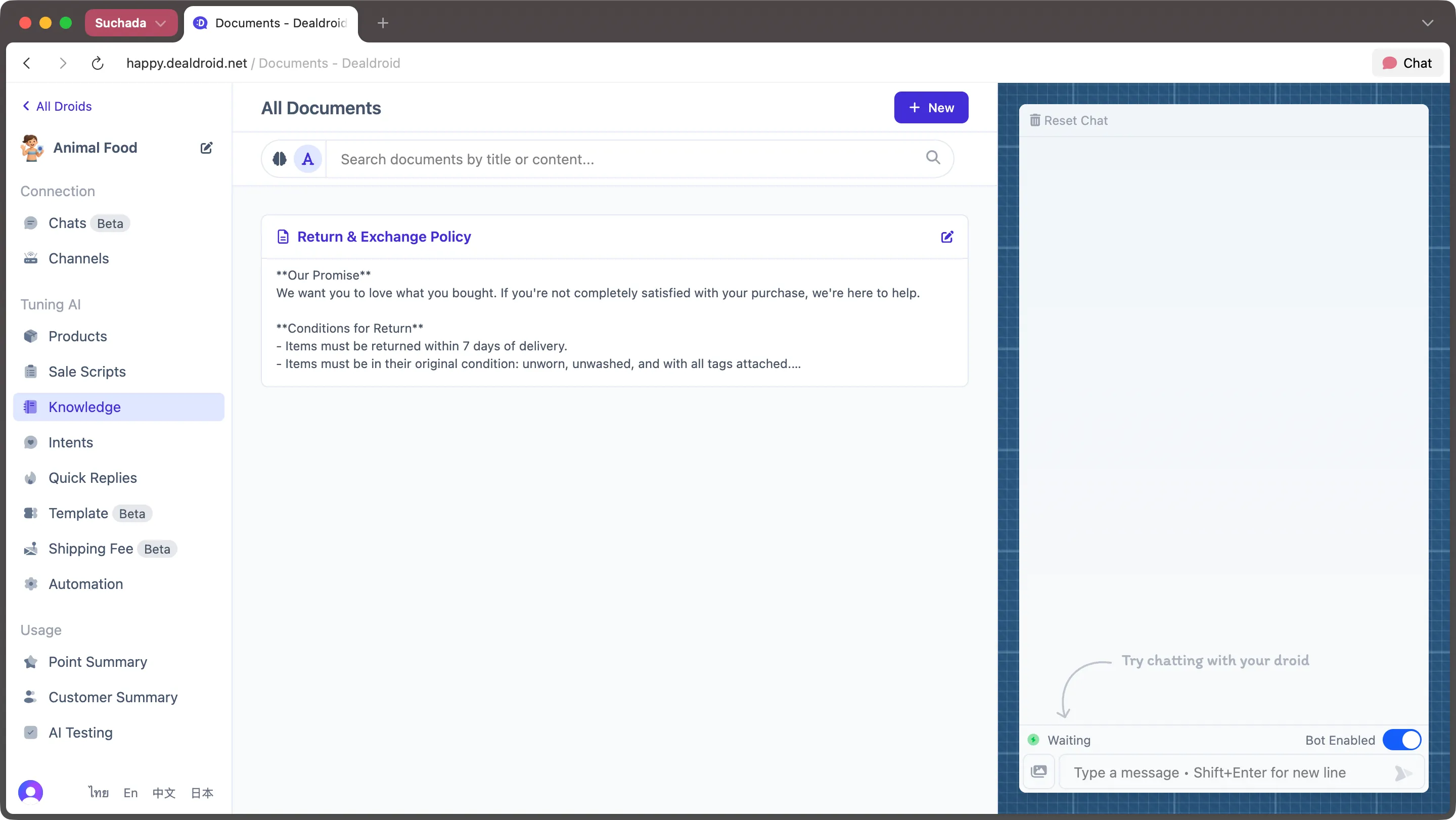
You can find the document management screen by logging into your DealDroid dashboard and navigating to the Knowledge menu from the left sidebar.
From here, you can:
- ➕ Add new documents using the ”+ New” button
- ✏️ Edit existing documents by clicking the edit icon
- 🗑️ Delete documents that are no longer needed
- 🔍 Search documents by title or content
How Your AI Uses Documents
Section titled “How Your AI Uses Documents”Your Droid is a smart reader! When you upload a document, the system automatically breaks the information down into smaller, logical chunks. When a customer asks a question, your Droid finds the most relevant chunk of knowledge and uses it to give a precise and helpful answer.
You can use simple Markdown to structure your documents, which helps the AI understand the hierarchy and context of the information. Here are the basic symbols you can use:
# A hashtag creates a main heading. More hashtags (##, ###) create subheadings.
- A hyphen creates a bullet point for an unordered list.
1. A number followed by a period creates an ordered, numbered list.
--- Three hyphens create a line to separate different sections of information.
Example of a Document
Section titled “Example of a Document”Here is the “Return Policy” example from the guide. It shows how to use headings, lists, and a friendly tone to create an effective document.
Title: Yummy Pet Store - Return Policy
# Return Policy
We get it—sometimes a product might have an issue or just isn't a hit with your furry friend. Don't worry! We have a flexible policy to take the best care of you and your pet.
## We'll gladly exchange/return products within 7 days if:
- You received the wrong flavor, formula, or item.- The product was damaged during shipping (e.g., the bag is torn).- The product is expired.
If this happens, just chat with us! 📸 Snap a quick photo of the item in question, and we'll rush to send you a new one or provide a full refund.
---
## Special Case: "I bought it... but my pet won't eat it."
We know that feeling all too well! 🥺 For food safety reasons, we can't accept returns on opened food bags. But wait! Don't throw it away!
Chat with us anyway! We genuinely want to help. ❤️ We might be able to:
- Give you free samples of other flavors to try.- Offer a special discount on your next purchase to make up for it.- Share some tips and tricks to help your picky eater give it a try!
---
## How to Report an Issue (It's super easy!):
1. Chat with us: Message us on the platform where you made the purchase.2. Send Proof: Send a photo or video of the product with the issue.3. Let Us Help: We'll get back to you ASAP to solve the problem!
Our goal is to make you and your pets happy. If you have any problems, we're always here to talk! 😊
Document Fields Explained
Section titled “Document Fields Explained”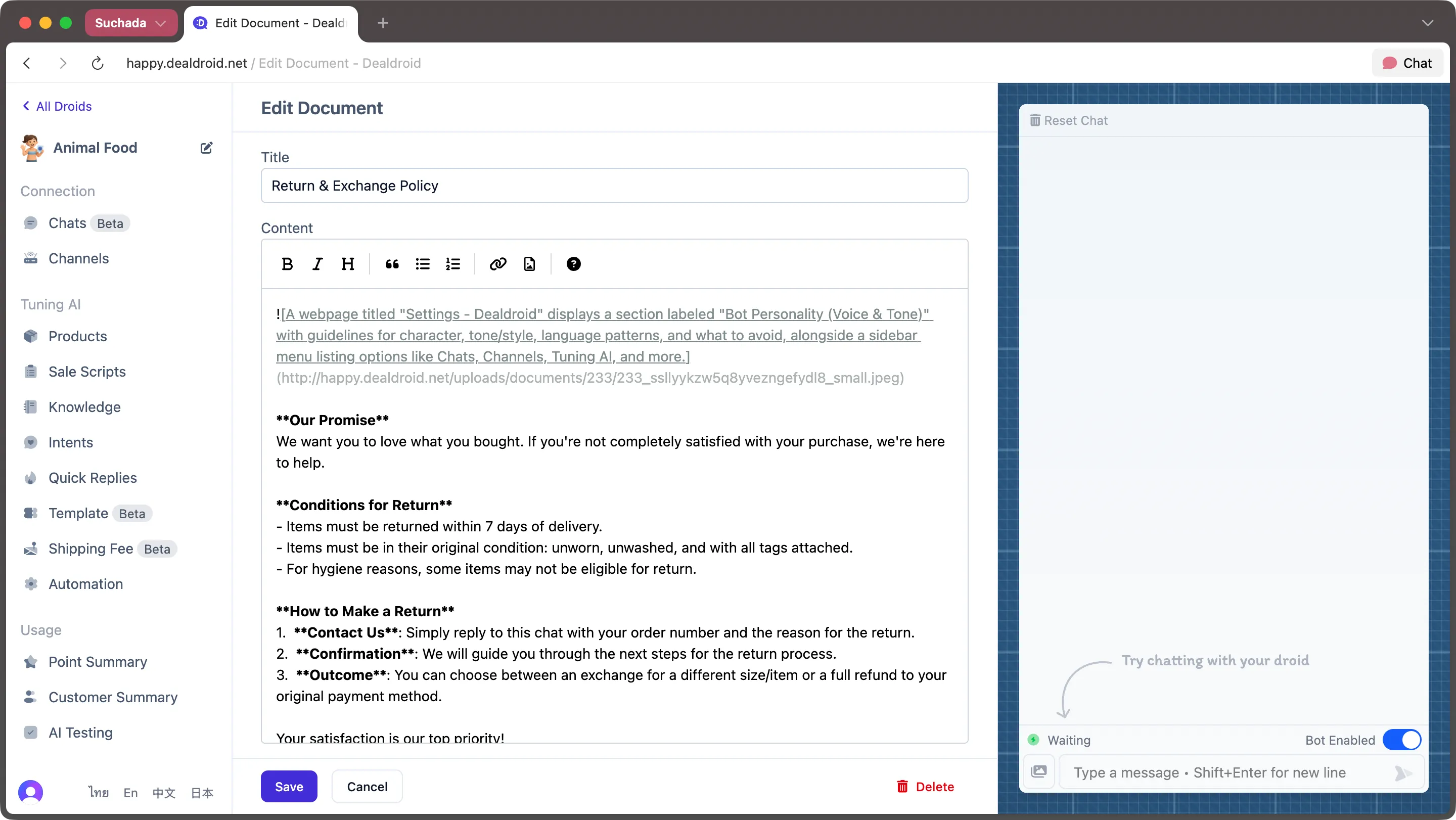
Here’s a field-by-field guide to adding a new document. Each field plays an important role in helping your AI understand and use your knowledge effectively.
This is the name of your document. It will be included with the content to give the AI context.
Tips:
- Use clear, descriptive titles
- Make it easy to identify the document’s purpose
- Use natural language that makes sense to your team
Examples:
- “Return & Exchange Policy”
- “Shipping Information”
- “Product Care Guide”
Content
Section titled “Content”This is the main body of your document, written in Markdown format.
What to include:
- Complete information about the topic
- Clear structure with headings and subheadings
- Bullet points or numbered lists for easy reading
- All relevant details your AI needs to answer customer questions
Adding Images to Your Documents
Section titled “Adding Images to Your Documents”Documents now support images! You can include images in two ways:
Option 1: Use a Public URL
If you already have images hosted online, simply use Markdown format:
Important: Make sure the URL is publicly accessible so your AI can use it.
Option 2: Upload Images Directly
You can upload images directly into DealDroid:
- Click the image icon (📷) in the toolbar while editing your document
- Select the image you want to upload
- DealDroid will automatically:
- Compress the image to optimize loading speed
- Generate alternative text using AI for accessibility
Best practices for images:
- 📍 Store maps — Help customers find your location
- 📋 Size charts — Visual guides for product dimensions
- 📖 Step-by-step guides — Visual instructions for product use
- 🎨 Infographics — Complex information made simple
- 🖼️ Product care guides — Visual demonstrations
Pro Tips for Success 💡
Section titled “Pro Tips for Success 💡”- Keep Paragraphs Concise: The AI works best when knowledge is broken into paragraphs of about 500 characters. This helps it find specific answers more easily.
- Make Links Useful: You can add links that your AI can share with users. Be sure to include descriptive text so the user (and the AI) knows where the link goes. For example:
[Learn more on our blog](https://your-website.com/blog)
- Use Dividers: Use
---to create a hard separation between different ideas. This tells your Droid that the following information is a completely new topic.
That’s It! 🎉
Section titled “That’s It! 🎉”Your AI is now a know-it-all (in the best way possible)!
By filling its library with well-structured documents, you’ve made your Droid an even more powerful and reliable assistant.
As always, we’re here to help if you have any questions. Happy teaching! 😊
Need More Help?
Section titled “Need More Help?”Check out our step-by-step visual guide: