
Set AI Behavior
Ready to make your AI Sales Agent work exactly the way you want?
The Behavior page is your main control center where you customize how AI responds to customers — from choosing what information to disclose, how to handle appointments, to response formats that match your brand. These settings give you full control over what AI says, when, and how — to perfectly align with your business strategy.
Why Behavior Settings Matter
Section titled “Why Behavior Settings Matter”Every business has a different sales approach. Some stores want AI to tell prices directly, others need human sales staff to handle it. Some businesses have online booking systems, others prefer phone confirmation first — behavior settings help you customize AI to fit your exact workflow.
Good behavior settings help you:
- 🎯 Control sensitive information — Choose whether AI should disclose prices, stock, or other data
- 📅 Manage appointments as needed — Use online booking systems or have staff confirm by phone
- 💬 Maintain tone and style — Long or short responses, formal or casual, as you prefer
- 🛡 Prevent errors — Review responses before sending with Supervision system
- 🧠 Increase intelligence — Enable Advanced Thinking mode when you need deeper answers
“Proper behavior settings help AI work efficiently and align perfectly with your business strategy”
How to Access Behavior Page
Section titled “How to Access Behavior Page”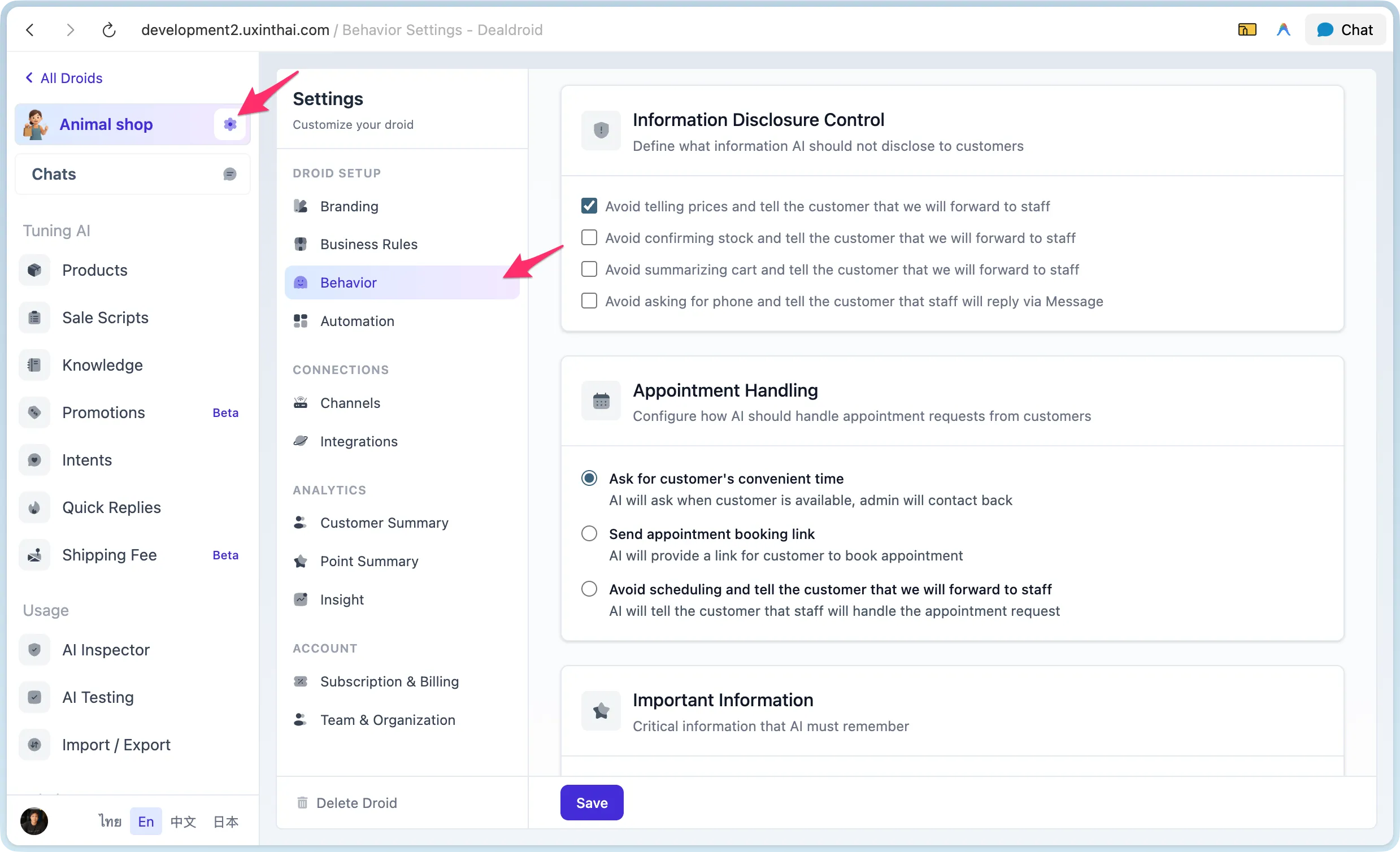
- Log in to DealDroid Dashboard
- Click Settings menu on the left sidebar
- Select Behavior
From this page, you’ll see all settings that control AI behavior — let’s explore each section!
1. Information Disclosure Control
Section titled “1. Information Disclosure Control”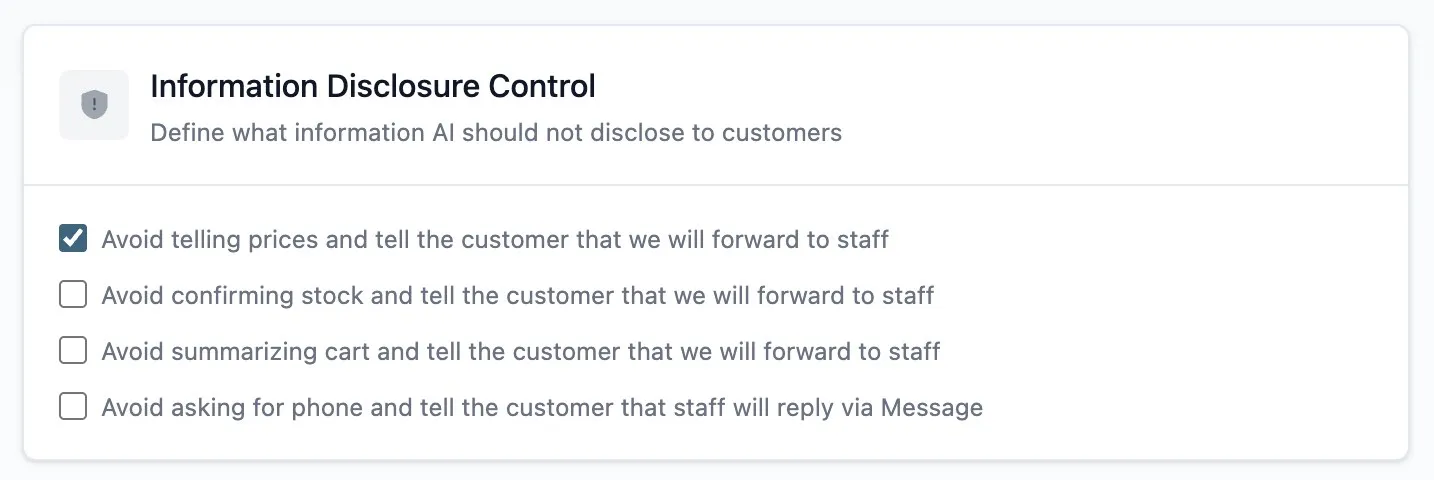
This section controls what information AI should disclose to customers. Perfect for businesses that want sales staff to handle sensitive information like prices, stock, or contact collection.
Avoid Telling Prices
Section titled “Avoid Telling Prices”Enable when you don’t want AI to tell prices directly — suitable for B2B businesses where prices are negotiable or products with frequently changing prices.
When enabled:
- AI sees prices in the system but won’t tell numbers to customers
- AI will say “I’ll forward this to staff to prepare a formal quotation for you”
Example:
Customer: How much is this?AI: Let me forward this to our sales team to prepare a formal quotation   with all details and the best price for you.
-- Turn off AI --
Admin: This product is 1,500 baht.
Avoid Confirming Stock
Section titled “Avoid Confirming Stock”Enable when you don’t want AI to confirm stock — suitable when stock data may not be real-time updated or you want staff to check before confirming.
When enabled:
- AI will say “I’ll forward this to staff to check the latest stock” to avoid mistakes
- Prevents promising stock that may be out
Example:
Customer: Is this in stock?AI: Let me check the latest stock with our team to make sure   it's actually available.
-- Turn off AI --
Admin: Yes, in stock!
Avoid Asking for Phone
Section titled “Avoid Asking for Phone”Enable when you don’t want AI to ask for contact information like name, phone number, or company name — suitable when you want customers to wait for reply in the same chat.
When enabled:
- AI won’t ask for personal information
- AI will say “Staff will check and reply via this Message”
Example:
Customer: Can you send me a quotation?AI: Sure! Our staff will prepare it and send it back via this Message.
-- Turn off AI --
Admin: Sure! May I have some information?      - Full name      - Phone number      - Company name
Avoid Summarizing Cart
Section titled “Avoid Summarizing Cart”Enable when you don’t want AI to show totals and close sales itself — suitable for businesses that want staff to prepare formal quotations.
When enabled:
- AI won’t calculate totals
- AI will ask for necessary information (company name, address, tax ID) then forward to staff
Example:
Customer: I'd like to orderAI: Great! May I have some information to prepare a formal quotation?   - Company name   - Billing address   - Tax ID   - Contact person
-- Turn off AI --
Admin: Order summary:      - Product A x2 = 3,000 baht      - Product B x1 = 1,500 baht      Total: 4,500 baht
Tip: These settings depend on your sales process. B2C businesses may turn all off, B2B businesses usually turn all on.
2. Appointment Handling
Section titled “2. Appointment Handling”This section controls how AI handles when customers request appointments, site surveys, or service calls. There are 3 modes to choose from:
Mode 1: Ask for Time (Default)
Section titled “Mode 1: Ask for Time (Default)”AI asks for customer’s preferred time, then forwards to staff to verify and confirm appointment.
Suitable for: Businesses that want personal touch, staff calls to confirm appointments.
How it works:
Customer: I'd like to schedule a site visitAI: Sure! When would be most convenient for you?
Customer: Tomorrow at 2pm?AI: Noted that you prefer tomorrow at 2:00 PM.   Our team will check availability and call to confirm.
Mode 2: Send Booking Link
Section titled “Mode 2: Send Booking Link”AI sends a link for customers to choose time and book themselves through online system like Calendly, Google Calendar.
Suitable for: Businesses with online booking systems, high appointment volume, want customer self-service.
Setup:
- Enter your booking system URL in Booking Link URL field
- AI will send this link to customers whenever they request appointments
How it works:
Customer: I'd like to schedule a health checkupAI: Sure! You can choose your preferred date and time here:   🔗 https://calendly.com/yourcompany
   You can view available slots and book directly.
Mode 3: Forward to Staff
Section titled “Mode 3: Forward to Staff”AI says the team has been notified and staff will contact back to schedule appointment.
Suitable for: Businesses with complex schedules, want staff to handle everything themselves.
How it works:
Customer: I need a technician to check the AC at my houseAI: Understood! I've notified our technician team. Our team will check schedules and call to set an appointment.Comparison Table:
| Mode | AI Action | Customer Experience | Best For |
|---|---|---|---|
| Ask for Time | Ask time, then forward | Conversational, wait for team to call confirm | Businesses needing personal touch |
| Send Booking Link | Send online booking link | Customer books immediately | High appointment volume, want self-service |
| Forward to Staff | Say forwarded | Wait for team to call back | Complex schedules, want full control |
3. Important Information (AI Memory)
Section titled “3. Important Information (AI Memory)”The Important Information field lets you write special instructions that AI must remember and follow always — like “golden rules” that AI will use in every response.
What to include?
Section titled “What to include?”- 📍 Information to always emphasize e.g., “Only serve customers in Thailand”, “Ship within 2-3 business days”
- 🚫 Important limitations e.g., “No returns on food items”, “No installation service”
- ✅ Policies to mention every time e.g., “1-year warranty”, “Free shipping on orders over 1,000 baht”
- 🎯 Special sales guidance e.g., “Promote Premium products first”, “Always suggest bundle deals”
Example
Section titled “Example”Only serve customers in ThailandShip within 2-3 business days after payment1-year manufacturer warrantyFree shipping on orders over 1,000 bahtNo returns on food and cosmetics (unless damaged)Writing Tips:
| Writing Style | Result |
|---|---|
| ✅ Specific “Ship within 2-3 business days” | AI gives clear info |
| ❌ Vague “Fast shipping” | AI may misinterpret |
| ✅ Use examples “e.g., no returns on food, cosmetics” | AI understands clearly |
| ❌ No details “Has return conditions” | AI can’t answer completely |
Note: Information entered here will be inserted into every AI response — think carefully about what AI really needs to remember always.
4. Forbidden Topics
Section titled “4. Forbidden Topics”This section lets you specify topics or keywords that you don’t want AI to discuss. When AI detects these topics in customer questions, it sends a fallback message and notifies admin immediately.
When to use:
- 🚫 Sensitive topics e.g., politics, religion
- 💼 Issues you want humans to handle e.g., price negotiation, complaints
- ⚖️ Legal matters e.g., legal advice, medical consultation
- 🏢 Competitors e.g., competitor store names, competitor brands
Example:
politicsreligioncompetitorsABC Storeprice negotiationspecial discountHow it works:
Customer: Do you agree with XX party?AI: (Doesn't respond but sends Fallback Message)
Fallback: "Sorry, let me have our team answer this. They'll contact you back as soon as possible."5. Response Formatting
Section titled “5. Response Formatting”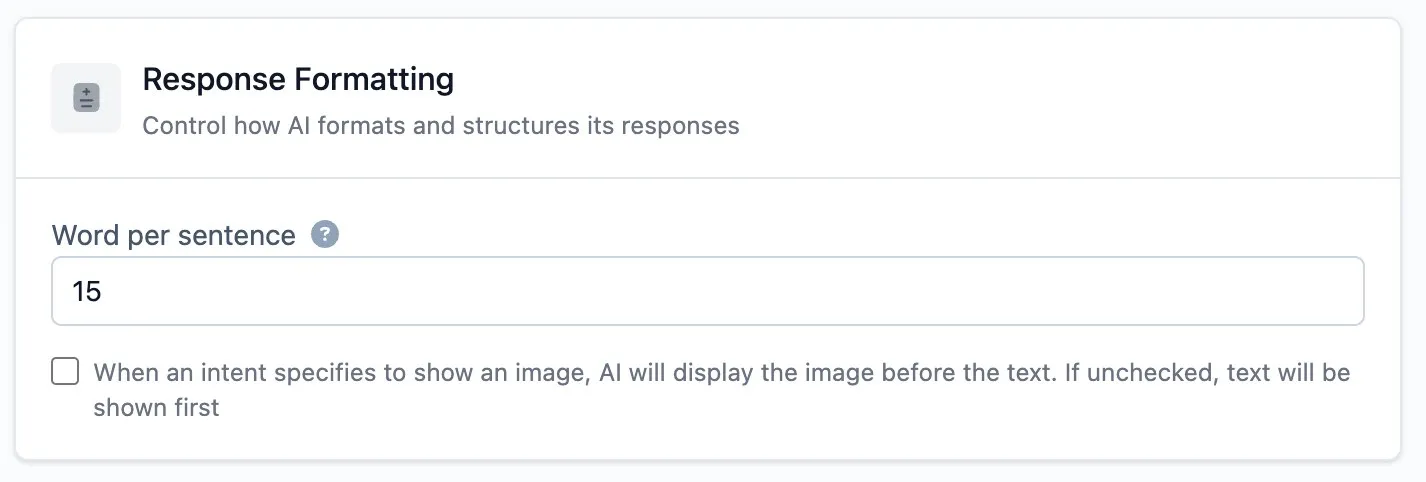
This section controls how AI responds — short and concise or long and detailed, and whether to show images before or after text.
Sentence Length (Words per Sentence)
Section titled “Sentence Length (Words per Sentence)”Controls how long AI responses are — can set from 10-100 words per sentence.
| Setting | Response Style | Suitable For |
|---|---|---|
| 10-15 words | Short, concise, quick chat | Businesses needing fast, simple responses |
| 20-25 words (recommended) | Balanced, conversational | General businesses, casual conversation |
| 40-50 words | Long, detailed, full explanation | Businesses needing lots of explanation, e.g., B2B, technical products |
Example Comparison:
Customer: Do you have food for Persian cats?
AI (15 words): Yes! I recommend Royal Canin Persian.   Perfect for Persian cats. Interested?
AI (25 words): Absolutely! I recommend Royal Canin Persian.   Special formula for Persian cats, helps with fur and digestion.   We have 2kg and 4kg sizes. Which size interests you?
AI (45 words): Absolutely! We have Royal Canin Persian Adult which is a special formula   designed specifically for Persian cats. Helps maintain beautiful long fur,   reduces hairballs, and promotes the delicate digestive system of Persian cats.   Available in 2kg (950 baht) and 4kg (1,750 baht). Which size interests you?
Show Images Before Text
Section titled “Show Images Before Text”Controls when AI needs to send both text and images, which to send first.
| Setting | Send Order | Suitable For |
|---|---|---|
| OFF (default) | Text → Image | Products needing explanation first, e.g., technical, electronics |
| ON | Image → Text | Products where images sell, e.g., fashion, home decor, food |
Example:
Text first (OFF):AI: This is a large Tote bag, fits lots of stuff.   High-quality canvas material, durable, 3 colors available.[Bag image]
Image first (ON):[Bag image]AI: This is a large Tote bag, fits lots of stuff.   High-quality canvas material, durable, 3 colors available.
6. AI Response Supervision
Section titled “6. AI Response Supervision”When enabled, a second AI system reviews responses before sending to customers — like having a “quality manager” checking every message before sending.
How does it work?
Section titled “How does it work?”- First AI generates response based on customer question
- Supervise AI checks if response has issues:
- ✅ Is information correct (prices, stock, links)
- ✅ Is grammar correct, any typos
- ✅ Mentions forbidden topics
- ✅ Has inappropriate language
- If passes → Send to customer
- If fails → Adjust and send again, or send Fallback
Pros and Cons
Section titled “Pros and Cons”| Factor | Enabled (recommended) | Disabled |
|---|---|---|
| Response Quality | High, verified | Standard, direct LLM |
| Speed | Slower +3-5 seconds | Faster |
| Risk of wrong answer | Lower | Higher |
| Suitable for | Real customers, Production | Testing, Development |
7. Advanced Thinking
Section titled “7. Advanced Thinking”Enable when you want AI to take more time to think before answering — suitable for complex questions requiring multiple factor analysis.
How does it work?
Section titled “How does it work?”When this mode is enabled, AI will:
- Analyze questions thoroughly
- Consider multiple perspectives before answering
- Verify reasonableness of answers
- Respond more carefully
Pros and Cons
Section titled “Pros and Cons”| Factor | Enabled | Disabled (default) |
|---|---|---|
| Response Quality | Higher, deeper | Standard, direct |
| Speed | Slower +2-3 seconds | Faster |
| Token Usage | More, higher cost | Less |
| Suitable for | Complex questions, important decisions | General customer service |
Usage Examples:
| Scenario | Should enable? |
|---|---|
| Customer asks for product recommendations for multiple problems | ✅ Yes — needs to analyze multiple factors |
| Customer asks prices, stock, general info | ❌ No — straightforward questions |
| Customer asks about complex policies | ✅ Yes — needs to analyze multiple policy clauses |
| Customer greets, asks general questions | ❌ No — waste of time |
Recommendation: Keep off for general use. Enable only when your business frequently gets complex questions.
Real-World Business Examples
Section titled “Real-World Business Examples”Let’s see Behavior setting examples for each business type:
Example 1: B2C Online Store (Pet Store)
Section titled “Example 1: B2C Online Store (Pet Store)”Goal: Fast response, close sales immediately, no waiting for staff
Settings:
✅ Information Disclosure Control: All OFF (let AI tell prices, stock, everything)✅ Appointment Handling: Not used (no appointments)✅ Important Information: - Free shipping on orders over 1,000 baht - Ship within 1-2 business days - No returns on opened food (unless damaged)✅ Forbidden Topics: (none)✅ Words per Sentence: 20 words (balanced, conversational)✅ Show Images Before Text: ON (show product images first)✅ Supervise Agent: ON (check responses before sending)✅ Advanced Thinking: OFF (not necessary)Result: Customer gets complete info, can buy immediately, no waiting
Example 2: B2B Business (Machinery Sales)
Section titled “Example 2: B2B Business (Machinery Sales)”Goal: AI collects requirements, forwards to sales team to close
Settings:
✅ Information Disclosure Control: All ON (avoid prices, stock, phone, cart)✅ Appointment Handling: "Ask for Time" (ask time, then forward to team)✅ Important Information: - Minimum order 100,000 baht - Pricing depends on quantity and specs - Installation and training services available✅ Forbidden Topics: - price negotiation - credit terms - competitors✅ Words per Sentence: 30 words (detailed explanation)✅ Show Images Before Text: OFF (explain first)✅ Supervise Agent: ON (check all responses)✅ Advanced Thinking: ON (complex questions frequent)Result: AI collects info, sales team calls to close deal themselves
Example 3: Beauty Clinic (Has Appointment Service)
Section titled “Example 3: Beauty Clinic (Has Appointment Service)”Goal: AI provides info and manages appointments via online booking system
Settings:
✅ Information Disclosure Control: - Avoid prices: OFF (can tell prices) - Avoid stock: Not relevant - Avoid phone: OFF (can collect customer info) - Avoid cart: ON (let team prepare quotation)✅ Appointment Handling: "Send Booking Link" + URL: https://calendly.com/clinic✅ Important Information: - Treatment takes approximately 60-90 minutes - Should avoid makeup before service - Free parking available✅ Forbidden Topics: - side effects (let doctor answer) - medical treatment✅ Words per Sentence: 25 words (casual conversation)✅ Show Images Before Text: ON (show portfolio first)✅ Supervise Agent: ON (must check medical info)✅ Advanced Thinking: OFF (questions not complex)Result: Customer can book queue themselves through system, reduces team burden
Summary: Quick Reference
Section titled “Summary: Quick Reference”| Setting | Default | Suitable For |
|---|---|---|
| Avoid Prices | OFF | Turn ON if prices are negotiable or vary per customer |
| Avoid Stock | OFF | Turn ON if stock isn’t real-time updated |
| Avoid Phone | OFF | Turn ON if you want customers to wait for reply in chat |
| Avoid Cart | OFF | Turn ON if you want team to prepare quotation |
| Appointments | Ask for Time | Use Link if have booking system / Forward if complex schedule |
| Sentence Length | 20 words | 15 words = short, 25 words = medium, 40 words = long |
| Image Before Text | OFF | Turn ON if products sell with images (fashion, food) |
| Supervise Agent | ON | Recommend always ON for Production |
| Advanced Thinking | OFF | Turn ON if frequently get complex questions |
Getting Started
Section titled “Getting Started”- Go to Settings > Behavior
- Read your business requirements
- Configure each section following examples above
- Save and test in chat
- Adjust until you get desired results
Ready? Go set up AI to work the way you want! 🚀