
Custom Customer Information Extraction
Beyond the 6 basic fields (name, phone, email, address, city, zipcode) that come by default, you can define custom fields for AI to automatically extract information from customer messages based on your specific business needs.
Whether it’s budget, pet names, purchase urgency, or any data that matters to your business — AI will extract and remember this information automatically to create a more personalized experience.
Why Define Custom Fields
Section titled “Why Define Custom Fields”- 🎯 Tailored to your business — Every business has different data needs
- 🧠 Smarter AI — The more AI knows about customers, the better and more personalized the responses
- 💾 No context loss — Extracted data is saved in customer profiles and available for future conversations
- ✨ Works alongside default fields — Doesn’t affect basic fields, just add more
“Truly knowing your customers is the key to successful sales — the more you know, the better you serve”
Real-World Examples
Section titled “Real-World Examples”Example 1: Pet Shop
Section titled “Example 1: Pet Shop”The pet shop owner wants to collect: Pet name, pet type, pet age, purchase urgency
Custom fields setup:
- Pet name — Guide: “Customer’s pet name (e.g., Brownie, Fluffy, Lucky)”
- Pet type — Guide: “Type of pet (e.g., dog, cat, rabbit, bird)”
- Pet age — Guide: “Pet’s age (e.g., 3 years old, 2 months, 5 years)”
- Purchase timeline — Guide: “How urgently the customer needs the product (e.g., urgent, next week, just browsing)”
Sample conversation:
Customer: Hi, I'm John. I have a dog named Brownie, 3 years old.          I need dog food urgently.
AI: Hello John! Nice to meet Brownie! 🐕    For a 3-year-old dog, we have several high-quality food options.    We can arrange urgent delivery for you today!
Extracted results:
- Name: “John”
- Pet name: “Brownie”
- Pet age: “3 years old”
- Purchase timeline: “urgently”
Benefit: Next time John returns, AI will remember his name, that he has a 3-year-old dog named Brownie, and can make targeted recommendations without asking again.
Example 2: E-commerce Store
Section titled “Example 2: E-commerce Store”Store owner wants to collect: Budget, purchase timeline, referral source
Custom fields setup: (Enable 3 default fields)
- Budget — Guide: “Customer’s stated budget or spending limit (e.g., 5000 baht, under $100, no budget limit)”
- Purchase timeline — Guide: “When the customer needs the product (e.g., urgent, this week, next month, just browsing)”
- Referral source — Guide: “How the customer found the business (e.g., friend recommendation, Instagram, Google, TikTok, advertisement)”
Sample conversation:
Customer: I'm interested in a laptop. Budget is around $1,000.          Need it by next week. A friend recommended you from Instagram.
AI: Thank you for your interest!    For laptops around $1,000, we have several great options.    We can definitely deliver by next week. Let me recommend our popular models...
Extracted results:
- Budget: “$1,000”
- Purchase timeline: “next week”
- Referral source: “friend recommendation from Instagram”
Benefit: AI will recommend only products within the $1,000 budget and emphasize timely delivery. You also know the customer came from Instagram for marketing analysis.
Example 3: B2B Services
Section titled “Example 3: B2B Services”B2B business wants to collect: Company name, project budget, purchase timeline
Custom fields setup:
- Company or organization — Guide: “Customer’s company name, shop name, or organization they represent”
- Budget — Guide: “Customer’s stated project budget (e.g., 100,000 baht, $5,000-$10,000)”
- Purchase timeline — Guide: “When they need to make the purchase (e.g., this quarter, next year, flexible)”
Sample conversation:
Customer: Hello, I'm from ABC Tech. We're interested in office computers.          Budget is around $20,000. Need installation this month.
AI: Hello! Welcome to the team from ABC Tech.    For a $20,000 budget, we can provide a complete office computer package    with installation this month. Let me propose the best package for you...
Extracted results:
- Company or organization: “ABC Tech”
- Budget: “$20,000”
- Purchase timeline: “this month”
Benefit: AI knows this is a B2B customer and will adjust communication to be more formal, while remembering company details and budget for follow-up.
How to Set Up Extraction Fields
Section titled “How to Set Up Extraction Fields”Step 1: Access Business Rules Page
Section titled “Step 1: Access Business Rules Page”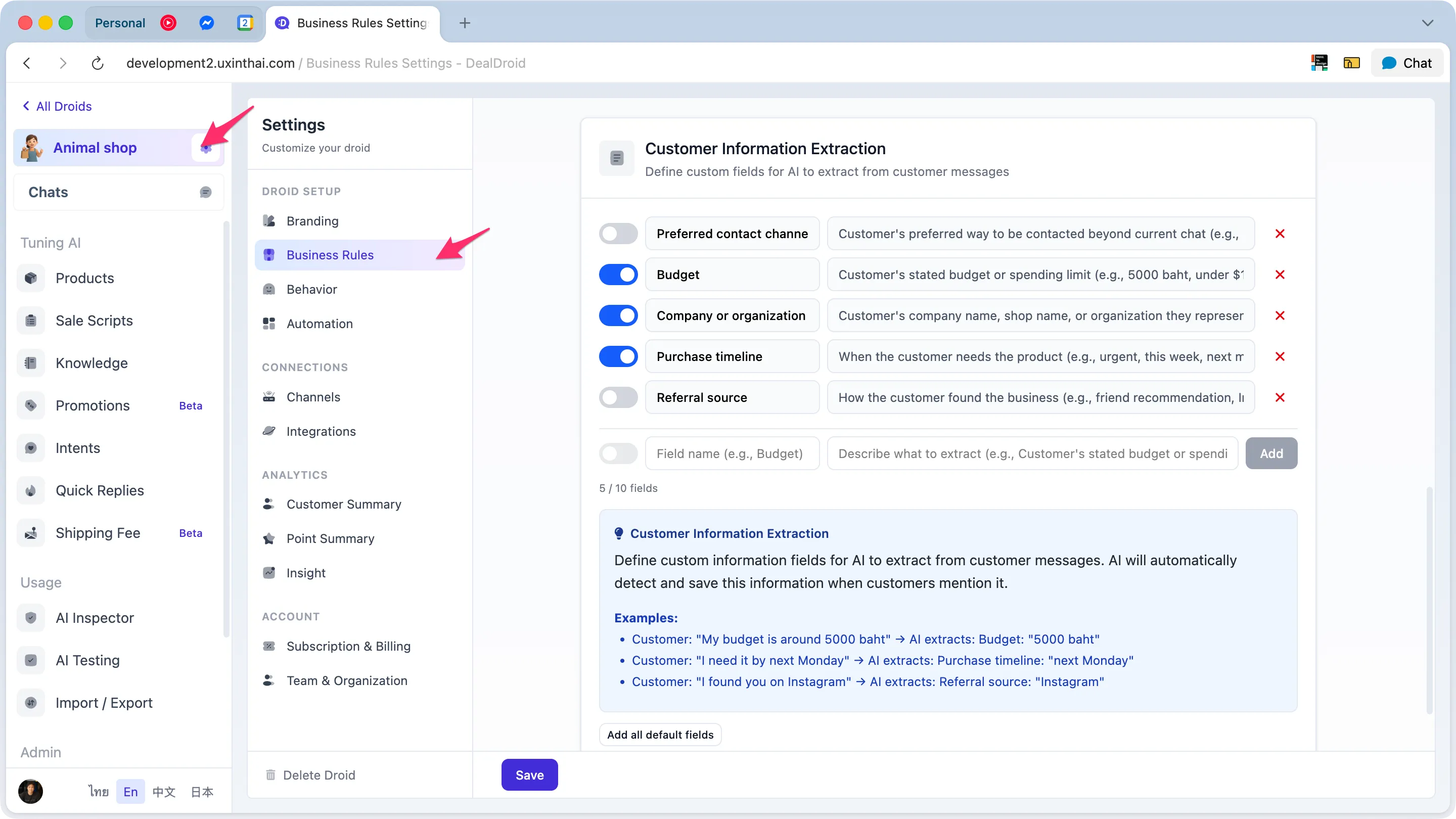
- Go to DealDroid Dashboard
- Click Settings menu on the left sidebar
- Select Business Rules
- Scroll down to Custom Information Extraction section
Step 2: Understanding Default Fields
Section titled “Step 2: Understanding Default Fields”When you create a new Droid, the system provides 5 default fields from the start (all disabled):
- Preferred contact channel — Customer’s preferred way to be contacted beyond current chat (e.g., LINE, WhatsApp, phone call, email)
- Budget — Customer’s stated budget or spending limit (e.g., 5000 baht, under $100, no budget limit)
- Company or organization — Customer’s company name, shop name, or organization they represent
- Purchase timeline — When the customer needs the product (e.g., urgent, this week, next month, just browsing)
- Referral source — How the customer found the business (e.g., friend recommendation, Instagram, Google, TikTok, advertisement)
How to enable:
- Click the toggle switch next to the field you want to enable (turns green)
- Or click “Add all default fields” button to enable all at once
Note: You can edit or delete these default fields as needed
Step 3: Create New Custom Fields
Section titled “Step 3: Create New Custom Fields”Click the ”+ Add Field” button and fill in 2 fields:
Name (Field Name)
Section titled “Name (Field Name)”The name used to identify this field — should be short, concise, and clear
Naming rules:
- Maximum 50 characters
- Must be unique among other fields (case-insensitive)
Good name examples:
- ✅ “Pet name”
- ✅ “Budget”
- ✅ “Delivery date”
- ✅ “Number of guests”
Avoid:
- ❌ “Info” (too vague)
- ❌ “Data” (not specific)
- ❌ “Details” (too broad)
Guide (Instructions for AI)
Section titled “Guide (Instructions for AI)”Most important! The Guide is what AI uses to decide what information to extract from customer messages.
Guide writing rules:
- Maximum 200 characters
- The clearer the better — Explain in detail with examples
- Always include examples using
(e.g., ...)— Helps AI understand expected formats
Guide writing examples:
| ❌ Bad | ✅ Good |
|---|---|
| ”Customer budget" | "Customer’s stated budget or spending limit (e.g., 5000 baht, under $100, no budget limit)" |
| "Pet information" | "Customer’s pet name (e.g., Brownie, Fluffy, Max)" |
| "Date" | "Date the customer needs delivery (e.g., next Monday, Feb 15, urgent)" |
| "Company" | "Customer’s company name, shop name, or organization they represent" |
| "Number" | "Number of people for dining reservation (e.g., 2 people, party of 10)” |
Tips for writing Guide:
- 📝 Always include examples → AI will understand expected formats more clearly
- 🎯 Be specific → The more detailed, the more accurate AI’s extraction
- 🔢 Specify format for numbers or dates → e.g., “Amount as a number” or “Date in DD/MM/YYYY format”
When finished, click Save or Add button
Step 4: Manage Created Fields
Section titled “Step 4: Manage Created Fields”Enable/Disable:
- Click the toggle switch next to the field
- On = AI will extract this field
- Off = AI will skip this field (does nothing)
Delete field:
- Click the delete button (trash icon)
- Old extracted data will not be deleted — just stops extracting new data
Edit field:
- ⚠️ No direct edit button
- To edit name or guide → Delete and create new
Note: When you delete a field, old data already extracted will remain in customer profiles (orphaned data) but no new extraction will occur
How to Test Extraction
Section titled “How to Test Extraction”Testing helps ensure AI extracts data correctly as expected.
Testing Steps
Section titled “Testing Steps”1. Go to a page with Test Panel
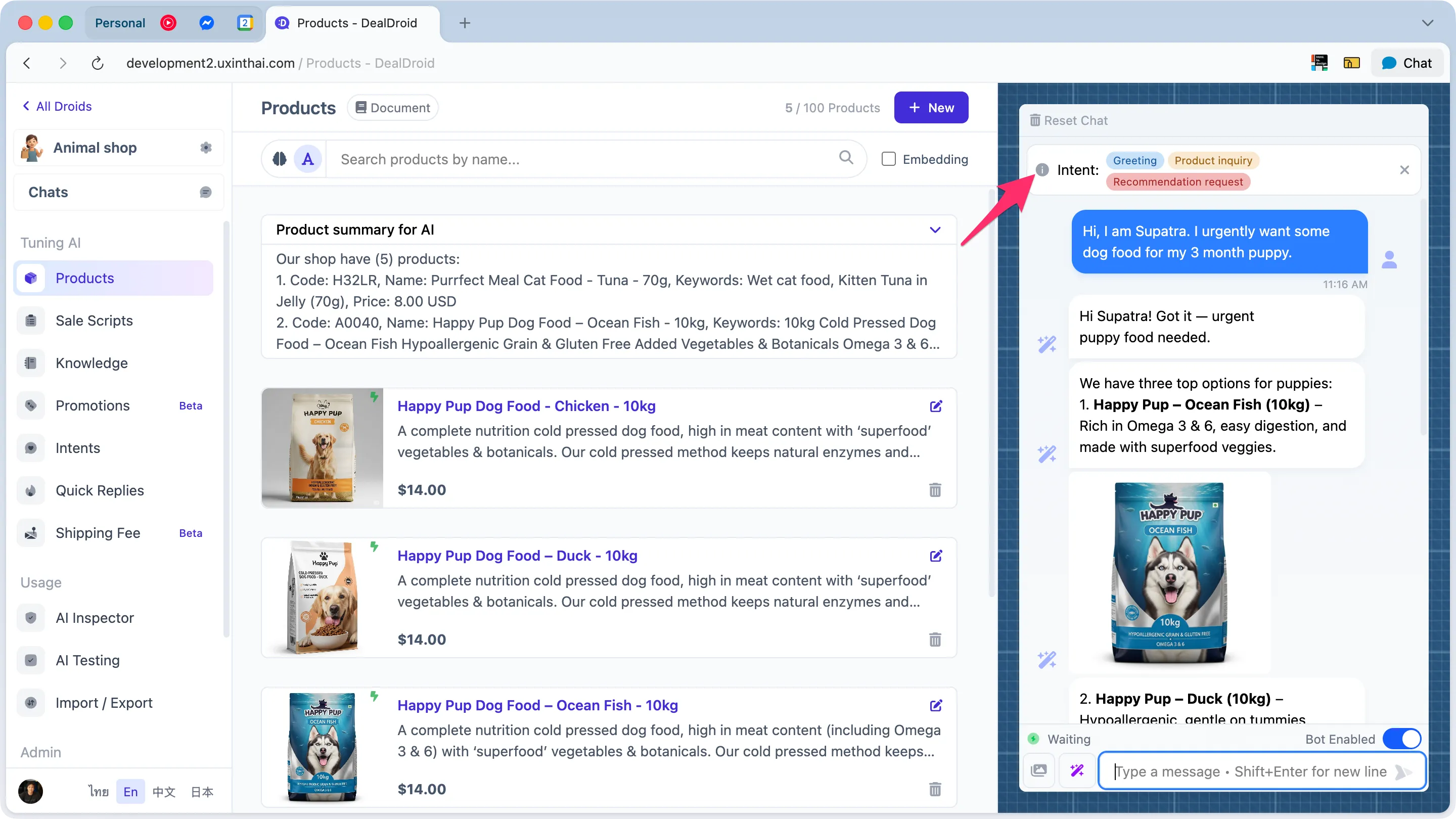
- Go to Product, Document, Sale Script or other pages with a test chat panel on the right
- Open test chat (if not already open)
2. Type test messages
Try typing messages containing data you want AI to extract
Sample test messages:
"Hi, I'm John. I need dog food urgently.""Interested in a laptop. Budget is around $1,000. Need it next week."
3. Wait for AI response
AI will respond normally
4. Check extracted data
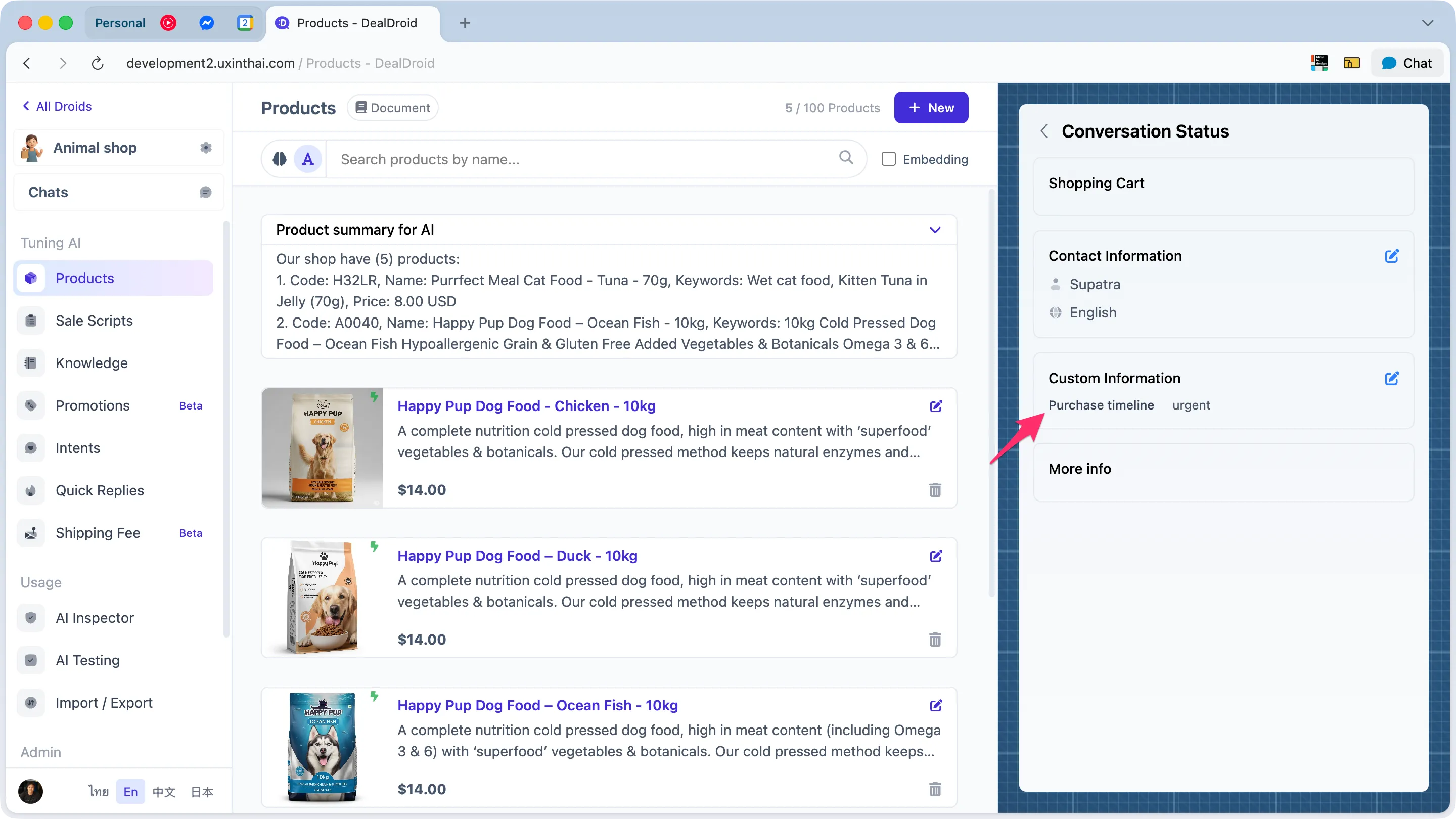
- Click the
i(info icon) button on the customer card - Card will flip to the back showing customer information
- Look for the “Custom Information” section
- You’ll see extracted fields with values like:
Name: JohnPurchase timeline: urgently
Note: If there’s no data at all, the “Custom Information” section won’t appear
5. Verify accuracy
Compare results with expectations:
- ✅ Correct → AI extracted as expected. Great!
- ❌ Incorrect or Nothing extracted → Try adjusting Guide to be more specific
Additional Test Cases
Section titled “Additional Test Cases”Test with no data:
- Type:
"What products do you have?" - Expected: Should not extract anything (no relevant data)
Test multiple fields at once:
- Type:
"I'm James from ABC Tech. Budget is $50,000. Need it this week." - Expected: Extract Name, Company, Budget, Purchase timeline all correctly
Test after disabling field:
- Disable the field you want to test
- Test again → Should not extract the disabled field
How AI Uses Extracted Data
Section titled “How AI Uses Extracted Data”When AI extracts data, that information is:
- Saved to Customer Profile — Combined with other customer data
- Stored permanently — Won’t disappear when chat closes or days pass
- Used in future responses — AI will remember and respond more accurately without re-asking
Usage example:
First conversation:
Customer: My budget is $5,000AI: (Saves Budget: "$5,000") Got it, $5,000 budget. Let me recommend products in this range...Second conversation (next day):
Customer: Do you have other models?AI: (Remembers Budget: "$5,000") Yes! For your $5,000 budget, we have 3 more interesting options...Benefit: Customers don’t need to repeat information, AI remembers — creates a smooth and personalized experience
Best Practices
Section titled “Best Practices”1. Choose Fields That Fit Your Business
Section titled “1. Choose Fields That Fit Your Business”- Enable only truly necessary fields — don’t enable everything
- Ask yourself: “Will this data help AI respond better to customers?”
- Fewer fields mean faster and more accurate AI
2. Write Good Guides
Section titled “2. Write Good Guides”- ✅ Always include examples → e.g.,
(e.g., urgent, next week, just browsing) - ✅ Be clear and specific → “Pet’s name” is better than “Pet info”
- ✅ Specify format → “Date in DD/MM/YYYY” or “Number without currency symbol”
3. Test Before Going Live
Section titled “3. Test Before Going Live”- Test in test panel before letting real customers use it
- Try various formats: short messages, long messages, multiple fields, no fields
- Adjust Guide if results don’t match expectations
4. Manage Fields Systematically
Section titled “4. Manage Fields Systematically”- Use clear names (English is recommended for consistency)
- Delete unused fields → Makes AI work faster
- Don’t exceed 10 fields → More fields = more complexity
5. When to Disable a Field
Section titled “5. When to Disable a Field”- No longer need that data
- AI extracts incorrectly often → Try adjusting Guide first, disable if still not working
- No customers provide that data (after observing real usage)
Important to Know: AI Extracts Passively
Section titled “Important to Know: AI Extracts Passively”What this means:
- If customers don’t mention the data → AI won’t extract anything
- AI won’t ask “What’s your budget?” or “What’s your pet’s name?”
- Data is extracted only when customers mention it themselves in conversation
Want AI to Ask Questions?
Section titled “Want AI to Ask Questions?”If you want AI to ask questions to collect data, you can add questions in 2 places:
1. Add to Intent (Intent Detection)
Create a new Intent or edit an existing Intent to have AI ask desired questions
Sample Intent for Pet Shop:
Intent: Greeting
Goal: Greet customers in a friendly way
Strategy:
- Casually ask for basic customer information like name, pet type, or pet age
2. Add to Important Instructions
Add instructions in Important Instructions to have AI always try to ask for important data, regardless of which intent the customer has.
Sample Important Instructions:
When customers show interest in products, ask for the following information:
- Pet name, type, and age (for pet products)- Budget they want to spend- How urgently they need the product
Ask naturally and don't make it feel like filling out a form
Comparison: 3 Approaches to Collecting Customer Data
Section titled “Comparison: 3 Approaches to Collecting Customer Data”| Approach | 1. Extraction Fields Only | 2. Extraction + Intent | 3. Extraction + Important |
|---|---|---|---|
| Does AI ask? | ❌ Doesn’t ask | ✅ Asks only in specific Intents | ✅ Asks in all Intents |
| Extracts when customer speaks? | ✅ Always | ✅ Always | ✅ Always |
| Best for | Customers usually provide data voluntarily | Want to ask only in certain situations | Need complete data every time |
| Example | Customer says “budget $5000” AI saves it | Only asks during Greeting, not in other intents | Asks in all intents regardless of topic |
| Pros | Non-intrusive, natural | Flexible, ask only when appropriate | Gets complete data for sure |
| Cons | May miss some data | Need to configure multiple Intents | May feel like interrogation if too many questions |
Important: Regardless of approach, Extraction Fields always auto-extract when customers mention data — even if AI doesn’t ask
Recommendation: Start with Approach 1 (Extraction Fields only) then add Intent/Important if you find data is incomplete
Troubleshooting
Section titled “Troubleshooting”AI Doesn’t Extract Data
Section titled “AI Doesn’t Extract Data”Check:
- ✅ Is the field enabled? (toggle = ON)
- ✅ Is the Guide clear enough? → Try adding examples
- ✅ Does the customer’s message contain relevant data?
AI Extracts Wrong Data
Section titled “AI Extracts Wrong Data”Solutions:
- Make Guide more specific with diverse examples
- Try adding “extract only …” in Guide to narrow scope
- If still not working → Contact support
Don’t See “Custom Information” Section
Section titled “Don’t See “Custom Information” Section”Reasons:
- Need at least 1 field with a value → If none, section won’t appear
- Don’t forget to click the
ibutton to flip the card
Want to Edit Field Name or Guide
Section titled “Want to Edit Field Name or Guide”- ⚠️ No direct edit
- Solution: Delete old field → Create new field
- Old extracted data won’t disappear (safe)
Exceeded 10 Fields
Section titled “Exceeded 10 Fields”Solutions:
- Delete unused fields
- Or combine similar fields (e.g., merge “Pet name” and “Pet type” into “Pet information”)
Viewing and Editing in Chat Page
Section titled “Viewing and Editing in Chat Page”View Extracted Data
Section titled “View Extracted Data”- Go to Chat page (actual customer conversations)
- Select a customer
- Click
ibutton to flip customer card - View data in “Custom Information” section
Manual Editing
Section titled “Manual Editing”- Can edit/delete values for each field from customer detail panel
- Useful when AI extracts incorrectly or data changes
- Don’t forget to click Save to save changes
When Data Gets Reset
Section titled “When Data Gets Reset”Custom extraction data is reset when:
- Using “Clear intents and shopping cart” function
- (Depends on system settings)
Technical Notes (For Advanced Users)
Section titled “Technical Notes (For Advanced Users)”Data Structure
Section titled “Data Structure”- All extracted values are stored as strings (text) always
- Even if they’re numbers or dates, stored values are text like
"5000","2026-02-09" - No type casting — Guide tells AI what type of data to extract
Performance
Section titled “Performance”- AI uses parallel extraction → Doesn’t add latency
- If all fields disabled → AI skips processing immediately (zero overhead)
- Fewer fields = faster AI
Deleting Fields
Section titled “Deleting Fields”- Deleting fields doesn’t delete old data → Orphaned data remains in customer profiles
- Just stops new extraction
- Old data remains usable (safe, no data loss)
Validation
Section titled “Validation”- Field names must be unique (case-insensitive) → “Budget” = “budget” = “BUDGET”
- Validation works on both UI and server
- If AI returns invalid data → System skips it and logs warning (doesn’t block pipeline)
Related Features
Section titled “Related Features”- Fixed Contact Fields: The 6 basic fields (name, phone, email, address, city, zipcode) that come by default
- Customer Profile: View all customer data combined, including AI-extracted information
- Business Rules: Configure other AI behaviors to control how it works