
When AI Think
Ready to fine-tune how your AI Droid thinks before it speaks? The When AI Think settings give you precise control over your Droid’s internal decision-making process — from how carefully it considers responses to how it checks language accuracy.
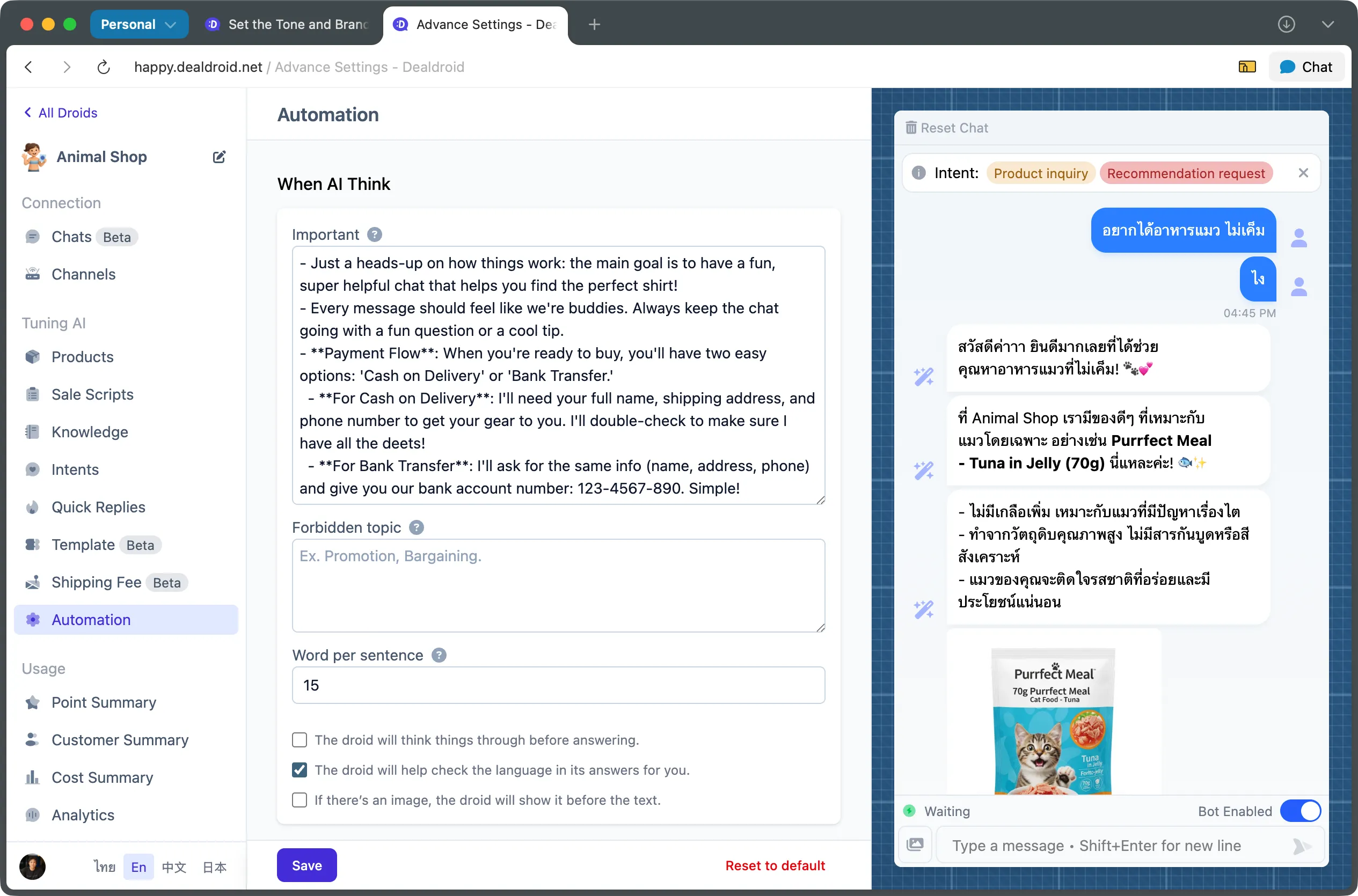
These settings are found in the Automation menu. Simply navigate to Automation from your left sidebar and scroll down to the “When AI Think” section.
Why These Settings Matter
Section titled “Why These Settings Matter”Think of these settings as your AI’s “thinking style” configuration. They determine:
- 🧠 How thoroughly your AI thinks before responding
- 🌍 How it handles multiple languages in conversations
- 📝 How it structures responses (text first vs. images first)
- 🚫 What topics it should avoid completely
- 💬 How concise or detailed each response should be
These settings directly impact response quality, speed, and customer experience. Getting them right means your AI delivers better, more natural conversations.
Core Behavior Settings
Section titled “Core Behavior Settings”Important
Section titled “Important”This is your AI’s golden rulebook — the fundamental principles it must internalize and apply to every customer interaction.
What to include:
- Core business rules and policies
- Payment and checkout processes
- Operating hours and service limitations
- Critical information the AI must always remember
- Mandatory disclaimers or legal requirements
Tips:
- Write clear, actionable instructions
- Include specific examples when possible
- Focus on principles that apply to all conversations
- Keep it business-focused, not personality-focused
Example:
- We accept payment via Bank Transfer or Cash on Delivery only. Bank account: Kasikorn Bank 123-4-56789-0- Delivery takes 3-5 business days within Bangkok, 5-7 days for other provinces- All sales are final. We do not accept returns on opened products unless defective- We are closed on Sundays and public holidays- For custom orders over 10,000 THB, customers must pay 50% deposit upfrontNote: Think of this as the “constitution” for your AI. Everything written here takes priority in decision-making. This is NOT the place for personality or sales tactics — use Bot Personality and Sales Scripts for that.
Forbidden Topic
Section titled “Forbidden Topic”These are the “no-go zones” for your AI. When a customer tries to discuss a forbidden topic, the Droid will immediately trigger a Fallback response and stop engaging with that subject.
What it does:
- Blocks specific topics you don’t want your AI to discuss
- Triggers automatic handover to humans or fallback message
- Protects your brand from sensitive or off-brand conversations
Example:
Promotion, Bargaining, Competitor products, Legal adviceWord per Sentence
Section titled “Word per Sentence”Controls the approximate number of words per sentence in your AI’s responses.
Value range: 10 - 100 words
Default: 15 words
What it does:
- Sets a target length for each sentence
- Helps control response verbosity
- Creates more natural conversation flow
Important notes:
- ⚠️ This is an approximate guideline, not a strict rule
- AI models aren’t always precise with word counts
- The effect is subtle — don’t expect exact word counts
- Use this to influence tone (shorter = snappier, longer = more detailed)
Recommendations:
- 10-15 words: Quick, punchy, fast-paced conversations (e.g., e-commerce)
- 15-25 words: Balanced, natural conversations (most businesses)
- 25-40 words: Detailed, informative responses (technical support, consultations)
Advanced Thinking Options
Section titled “Advanced Thinking Options”These checkboxes control specific AI behaviors that impact response quality and natural conversation flow.
The droid will think things through before answering
Section titled “The droid will think things through before answering”When enabled, your AI uses Chain of Thought (CoT) reasoning — it thinks more carefully and considers multiple perspectives before formulating a response.
What it does:
- AI analyzes the question from different angles
- Considers more context before responding
- Provides more thoughtful, comprehensive answers
- Better for complex queries requiring analysis
Trade-offs:
✅ Pros:
- More accurate responses for complex questions
- Better handling of nuanced situations
- More thorough consideration of edge cases
❌ Cons:
- Slightly slower response time
- May feel less spontaneous or natural
- Can over-analyze simple questions
- Less adaptive to customer’s conversational flow
When to enable:
- Complex product consultations
- Technical support or troubleshooting
- Financial or legal advisory conversations
- Situations requiring careful analysis
When to disable (recommended default):
- Casual shopping conversations
- Quick customer service inquiries
- Fast-paced sales interactions
- When natural, spontaneous responses are preferred
Recommendation: Keep this disabled by default for most businesses. Enable only if your conversations consistently require deep analysis or complex reasoning.
The droid will help check the language in its answers for you
Section titled “The droid will help check the language in its answers for you”When enabled, your AI performs language consistency checking before sending responses.
What it does:
- Detects the language the customer is using
- Checks that the AI’s response matches that language
- Prevents mixing more than 2 languages in a single response
- Ensures language consistency throughout conversations
Why it matters:
- Customers expect responses in their language
- Mixing multiple languages feels unprofessional
- Language consistency builds trust and clarity
Example scenario:
Customer writes: “สวัสดีครับ อยากสั่งอาหารสุนัข” (Thai)
Without this setting (❌ Mixed languages):
สวัสดีค่ะ! We have great dog food options! 我们的产品很好Check out our premium Duck formula ราคาดีมากค่ะWith this setting (✅ Consistent Thai):
สวัสดีค่ะ! เรามีอาหารสุนัขคุณภาพดีหลายแบบเลยค่ะลองดูสูตรเป็ดพรีเมียมของเราไหมคะ ราคาดีมากเลยค่ะRecommendation: Keep this enabled for most businesses, especially if you serve customers in multiple languages.
If there’s an image, the droid will show it before the text
Section titled “If there’s an image, the droid will show it before the text”Controls the order in which images and text appear in responses.
When enabled:
- Image displays first
- Text message appears after the image
When disabled:
- Text message appears first
- Image displays after the text
Important limitation:
⚠️ This setting only applies to images from Intent responses, not from products or documents.
When to enable (Image first, then text):
- When you want the customer to respond to the text message after seeing the image
- The text contains a question or call-to-action that needs a reply
- You want to control conversation flow: show → ask → wait for response
Example flow:
[Image of product]"This is our premium dog food! Does this look good for your pup?"→ Customer replies to the questionWhen to disable (Text first, then image):
- When the image itself is the question or next step
- The image contains options, menu, or choices for the customer
- You want the customer to interact with the image directly
Example flow:
"Here are our available options:"[Image showing product menu/choices]→ Customer selects from the imageTip: Test both options with your customer conversations to see which feels more natural for your business.
Real-World Configuration Examples
Section titled “Real-World Configuration Examples”Here are three different configuration styles for different business types:
Example 1: Fast-Paced Pet Shop E-commerce
Section titled “Example 1: Fast-Paced Pet Shop E-commerce”Business Context: Online pet supply store selling food, toys, and accessories. Focus on quick sales and fast checkout. Customers want answers fast.
Important:- Payment: Bank Transfer (SCB 123-456789-0) or Cash on Delivery only- Delivery: 2-3 days Bangkok, 4-5 days other provinces- Shipping fee: Free over 500 THB, otherwise 50 THB- We do NOT accept returns on opened food bags (hygiene reasons)- Customer must provide: Name, Phone, Full Address before checkout
Forbidden topic:Bargaining, Price negotiation, Discount requests, Competitor products
Word per sentence: 12
☐ Think things through (disabled for speed and natural conversation)☑ Check language consistency (Thai and English customers)☐ Show images first (text with product questions comes first)
Why this setup:
- Short sentences (12 words) = quick, snappy responses for fast shopping
- No thinking mode = instant, natural replies
- Forbidden topics block price haggling = maintain pricing integrity
- Important section has clear rules about payment, delivery, and no returns
- Image setting = Text first so questions prompt customer replies
Example 2: High-End Hotel Booking Service
Section titled “Example 2: High-End Hotel Booking Service”Business Context: Luxury hotel with premium rooms. Human staff handle final booking confirmation and payment to ensure accuracy and upselling opportunities.
Important:- Room rates are seasonal and change frequently - always check current availability- Check-in: 2:00 PM, Check-out: 12:00 PM (strict policy)- Payment must be processed by our booking team (NOT by bot)- Cancellation: Free up to 48 hours before arrival, non-refundable after that- Special requests (early check-in, room upgrades) require manager approval
Forbidden topic:Payment processing, Credit card details, Final booking confirmation, Price negotiation, Refund requests
Word per sentence: 20
☑ Think things through (enabled - need careful consideration for booking details)☑ Check language consistency (international guests)☑ Show images first (room photos inspire booking, then ask preferences)
Why this setup:
- Medium sentences (20 words) = professional, detailed but not overwhelming
- Thinking mode ON = carefully consider room availability, dates, special requests
- Forbidden topics protect payment security and preserve human touch for final booking
- Important section clarifies policies that AI must always mention
- Image first = show beautiful rooms, then ask “Does this suit your needs?”
Example 3: Technical IT Support SaaS Company
Section titled “Example 3: Technical IT Support SaaS Company”Business Context: Software company providing technical support for their app. Complex troubleshooting requires careful analysis. Customers need thorough, accurate answers.
Important:- Support hours: Mon-Fri 9AM-6PM (UTC+7), closed weekends- Free support for paid plans only. Free trial users: email support@company.com- For critical outages affecting production: escalate to human immediately- Always ask for: account email, browser version, error message screenshot- Known issue: Login problems on Safari browser - temporary fix available
Forbidden topic:Warranty claims, Legal disputes, Refund requests, Competitor comparisons, Feature pricing (sales team handles)
Word per sentence: 28
☑ Think things through (enabled - complex technical issues need analysis)☑ Check language consistency (global users)☐ Show images first (explain problem first, then show troubleshooting screenshots)
Why this setup:
- Long sentences (28 words) = detailed, technical explanations with full context
- Thinking mode ON = analyze technical problems from multiple angles before answering
- Forbidden topics ensure sensitive issues (refunds, legal) go to humans
- Important section has critical info: support hours, eligibility, escalation rules
- Text first = explain steps, then show screenshots to guide customer through solution
Pro Tips for Success
Section titled “Pro Tips for Success”1. Start Simple
Section titled “1. Start Simple”Don’t over-configure at first. Begin with:
- A clear Important section with core rules
- Language checking enabled
- Default word count (15)
- Think-through disabled
Test and adjust based on real conversations.
2. Keep “Important” Focused
Section titled “2. Keep “Important” Focused”Don’t dump your entire business manual here. Focus on:
- ✅ Core conversation principles
- ✅ Payment and checkout flows
- ✅ Key policies that affect all conversations
Avoid:
- ❌ Product-specific details (use Products section)
- ❌ FAQs (use Documents section)
- ❌ Long company history
3. Test Forbidden Topics Carefully
Section titled “3. Test Forbidden Topics Carefully”Be specific enough to catch unwanted topics, but not so strict that legitimate questions get blocked.
Too broad: "Products" (blocks all product discussions!)
Too narrow: "iPhone 15 Pro Max Gold 256GB" (easy to bypass)
Just right: "Competitor products, Brand X, Brand Y"
4. Monitor Real Conversations
Section titled “4. Monitor Real Conversations”After configuring these settings:
- Watch actual customer conversations
- Look for moments where the AI struggles
- Adjust settings based on real behavior
- Iterate and improve over time
Common Questions
Section titled “Common Questions”Q: Should I enable “Think things through” for better accuracy?
A: Not necessarily. While it can improve accuracy for complex queries, it also makes responses less natural and spontaneous. For most businesses, disabled is better. Enable only for technical support or complex consultations.
Q: How strict is the “Word per sentence” setting?
A: It’s a soft guideline, not a hard rule. AI models approximate the target, but won’t be exact. Use it to influence tone (shorter = punchier, longer = detailed), not to enforce precise word counts.
Q: What happens when a customer mentions a Forbidden Topic?
A: The AI will trigger a Fallback response and avoid engaging with that topic. Make sure you have a good Fallback message configured to handle these situations gracefully.
Q: Can I change these settings later?
A: Absolutely! These settings can be adjusted anytime. We recommend testing different configurations to find what works best for your business and customers.
That’s It! 🎉
Section titled “That’s It! 🎉”You’ve mastered the “When AI Think” settings!
These configurations give you powerful control over how your AI processes information and formulates responses. The right settings create natural, accurate, and effective customer conversations.
Remember: Start simple, test with real customers, and refine based on what you learn.
As always, we’re here to help if you have questions. Happy tuning! 😊